YouTube Corrections Explained: The Hidden Feature Most Creators Never Found
YouTube Corrections lets you flag factual errors on a published video without re-uploading. Here is what the feature does, where to find it, and why most creators have never seen it.


YouTube Corrections is a free creator feature that lets you flag factual errors or outdated information on a published video without re-uploading it, by adding a viewer-facing info card that appears during playback. The feature launched in June 2022, and it is tucked so deep inside YouTube Studio that the vast majority of working creators have never found it, because the setup lives inside the chapters section of video details rather than inside the cards section where creators naturally look. This post walks through what the feature does, where the card appears, why it has stayed hidden for over three years, and how to set one up on one of your own videos.
If you prefer a walkthrough with the actual click path, the companion video below shows the full setup on both desktop and the YouTube Studio mobile app, using one of my own videos as the live example.
What is the YouTube Corrections feature?
YouTube Corrections is a native feature inside YouTube Studio that lets you add a post-publication correction to any eligible video, using an info card that pops up during playback and opens a side panel with your list of corrections when a viewer clicks on it. The feature works on both desktop and mobile, and the same corrections are mirrored in the video description below the player, so viewers who scroll down can see the full list even if they miss the card during playback. The important distinction here is that corrections do not edit the video itself, because YouTube has never allowed creators to re-upload or rewrite footage after publishing, and a correction card is an overlay that tells viewers what has changed since you uploaded.
For creators who want to keep the full glossary of terms like info cards, chapters, and end screens in one place, the YouTube Glossary and Creator Dictionary has plain-language definitions for each of them.
Why did most creators miss YouTube Corrections for over three years?
The short answer is that YouTube launched the feature in June 2022 without a lot of fanfare, and the setup is located somewhere almost no one would look. The recent resurface began when I posted a thread about finding the feature while trying to fix an older video of mine, and Doug Hewson, a friend of the channel who covers YouTube updates regularly, reminded everyone in his live stream that corrections had actually been available for years.
I also saw that Marques Brownlee, better known as MKBHD, wished there was a way in a video to fix things on YouTube, and I thought to tell him about the feature, and HE said:
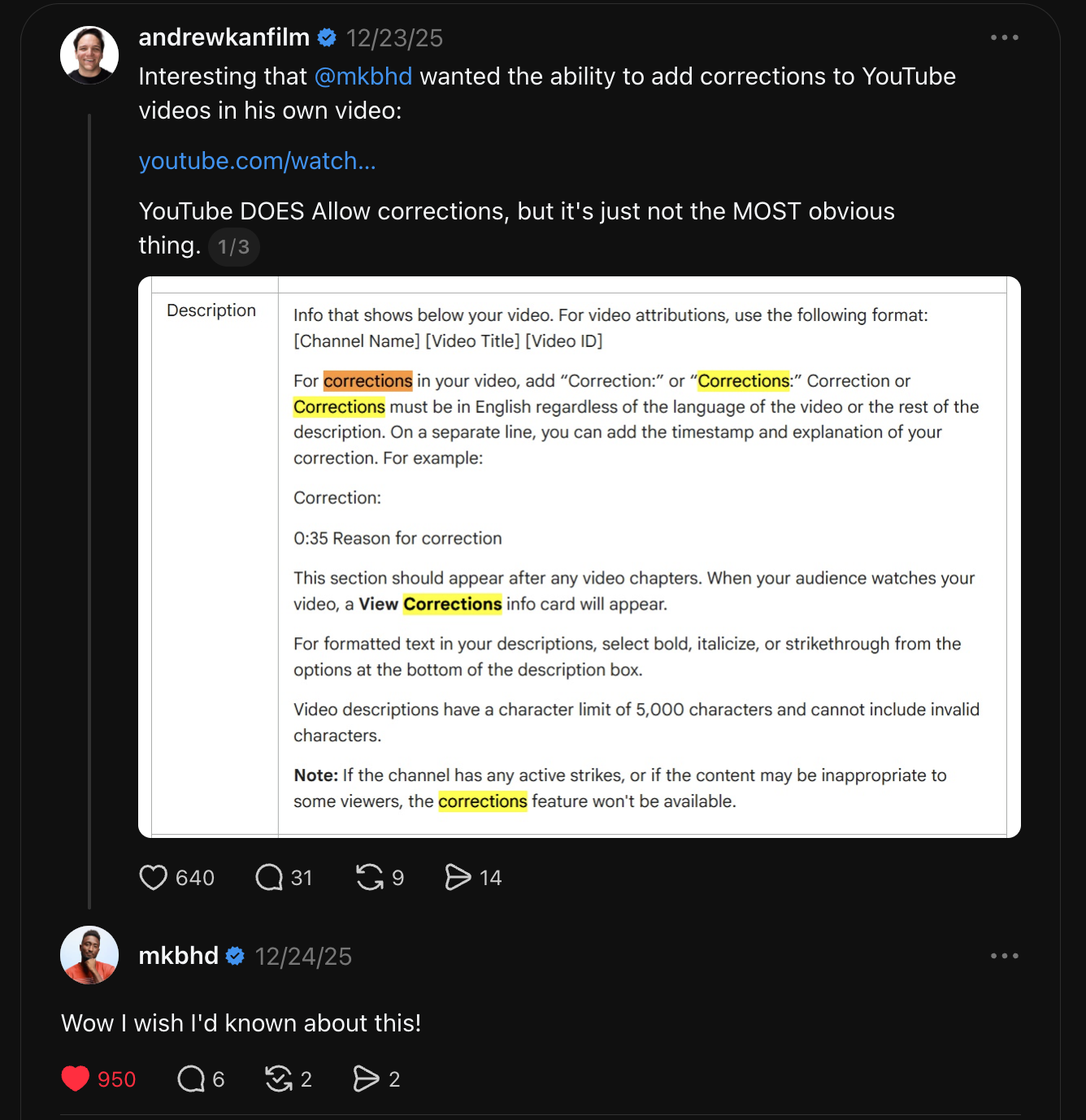
"Wow I wish I'd known about this!" in response to the post, and if a creator with his YouTube reach had never come across the feature, that tells you how quietly it has been sitting inside YouTube Studio for this long.
The deeper reason is architectural. YouTube placed the corrections setup inside the video YouTube description, under any chapters you have configured, rather than in the cards section of YouTube Studio where creators I feel would more naturally look for anything that renders as a card. That mismatch between where the feature lives and where creators expect to find it has kept the feature effectively invisible for the entire time it has been available.
Where does the correction card appear when viewers watch?
The correction card appears as a standard YouTube info card inside the player, in the same visual style creators already use for linked videos, playlists, and channel mentions. When a viewer clicks the card, a side panel opens on the right of the video with your list of corrections, and each entry is timestamped so viewers can jump to the exact moment the correction refers to. The same list is also visible in the video description below the player, which gives viewers a second surface to catch the correction if they never click the in-player card.

That dual placement is one of the things that makes the feature genuinely useful, because it catches both the viewer who watches in full screen and ignores the description, and the viewer who scrolls down to read the description before watching.
How do you add corrections to a YouTube video?
The setup lives in YouTube Studio, either on desktop or inside the YouTube Studio mobile app, under the video's details page rather than the cards page where most creators would intuitively look. You will also need chapters on the video, because the corrections block lives inside the same part of the description that houses your chapters, and the card is triggered by that positioning. The entries follow a specific format, with "Correction:" or "Corrections:" on its own line in English regardless of the original video language, followed by the timestamp and the explanation on the next line, with the whole block placed after any existing chapters.
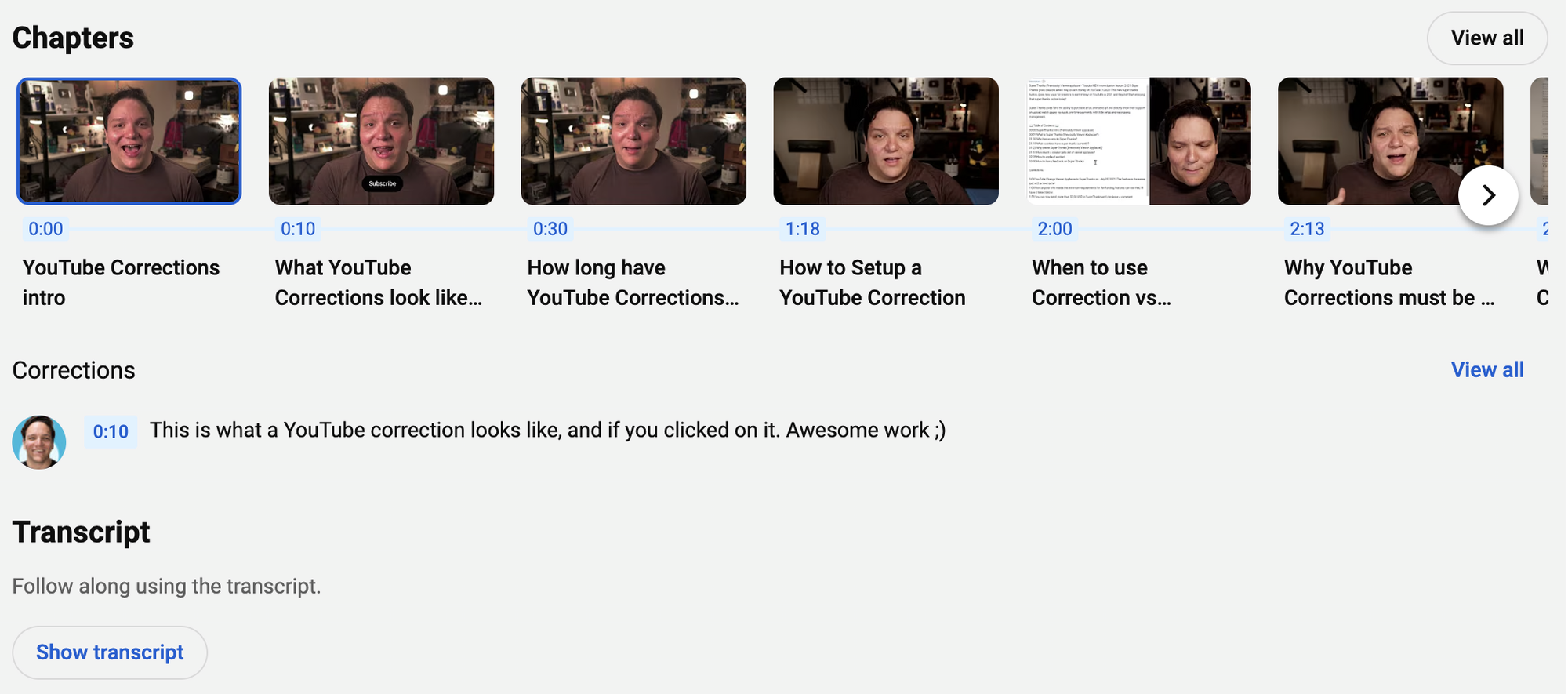
The companion video walks through the full click path in YouTube Studio, including how to avoid conflicts with existing cards and where exactly the corrections block needs to sit inside the description field, so if you want the step-by-step with screen recording, that is the fastest way to get a correction set up on one of your own videos.
What happens if your channel has active strikes or sensitive content?
YouTube gates the corrections feature behind eligibility rules, so a channel with any active community strikes will not see the option appear, and videos flagged as potentially inappropriate for certain audiences can also lose access to the feature on a per-video basis. That restriction is documented inside YouTube's own help language in the description field, and it is worth checking your channel status before trying to set up a correction, because the option will not appear if your account is not eligible. In practice, this means the feature is aimed at creators in good standing who are trying to be transparent with their audience, rather than at channels that have already been flagged for other reasons.
Why is a correction card better than a pinned comment?
Pinned comments have been the default workaround for years, because they are easy to set up and they surface right under the video, so creators have used them to flag mistakes, updates, and factual changes for as long as YouTube has allowed comment pinning. The problem with a pinned comment is that it lives below the fold on desktop, and even further down on mobile, so a viewer watching in full screen or with comments collapsed may never see it at all. A correction card, by contrast, appears inside the player itself, which means every viewer watching the video has a visible prompt that something has been updated, and the corrections themselves are timestamped so viewers can see exactly which part of the video the correction refers to.
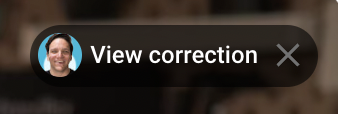
The pinned comment also competes with the rest of the comment section for attention, so even viewers who scroll down may skim past it, whereas a correction card is a YouTube-native surface that viewers already recognize from other creators' videos.
Why does this feature matter now?
Corrections matter right now because platform information changes constantly, and every creator has older videos on their channel that contain details that are either outdated or wrong. My own example is a video I made about YouTube's research tab, which YouTube then renamed to the inspiration tab, so the information in the video is no longer accurate even though the underlying feature is still the same. A correction card lets me flag that name change to viewers who find the video in search today, without having to re-record, re-upload, or lose the watch time and authority that the existing video has already accumulated. For any creator with a back catalog of tutorials, product reviews, or platform explainers, this feature is the first proper native tool YouTube has given us for keeping old videos honest.
If you want more updates on quietly released YouTube features that most creators never hear about, the KDCC newsletter covers them alongside the weekly live stream recaps.
If I Kan, You Kan Too.