YouTube Video Clips: How to Create and Share Clips From Your Videos

YouTube Clips evolves into... Video Clips!
When YouTube began focusing on livestreams, competing with the likes of Twitch.
Viewers on Twitch are able to easily clip livestreams and create shareable moments with other viewers. Best of all, they can do it while the streamer is still live. YouTube wanted a slice of that, and thus they created Clips.
Unfortunately, YouTube isn't great at telling people about new features and Clips was pretty much buried under the numerous amounts of other features. It wasn't great for VODs and it definitely wasn't great for livestreams.

Turn your longform videos into short, shareable clips with smart cuts, captions, and formats for YouTube Shorts, Reels, or TikTok.
Try it free with no signup. Just drop in your video link or upload a file to see what it creates. The link below is an affiliate link.
Not a lot of people used Clips to share with their friends and not a lot of creators shared these user-created Clips.
So YouTube decided to do away with Clips and expands "Share at Timestamp" to their mobile app. Now, if you want to share with your friends, click on the Share button and
- On desktop, check the box "Start at" and type in the timestamp.
- On mobile, toggle on the "Minute : Second" bar to share at a timestamp.
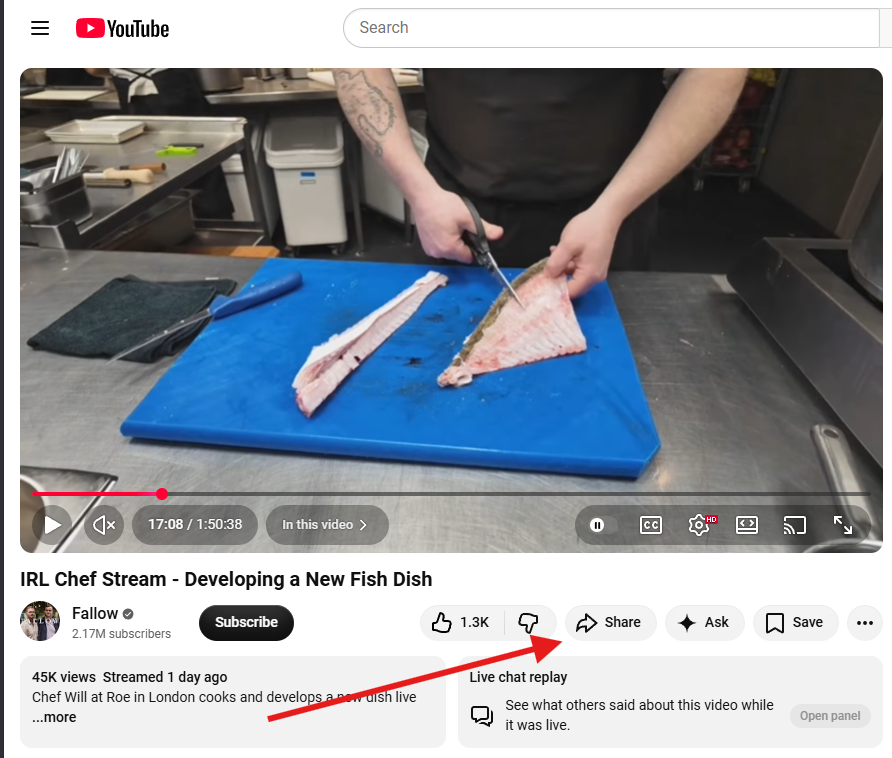
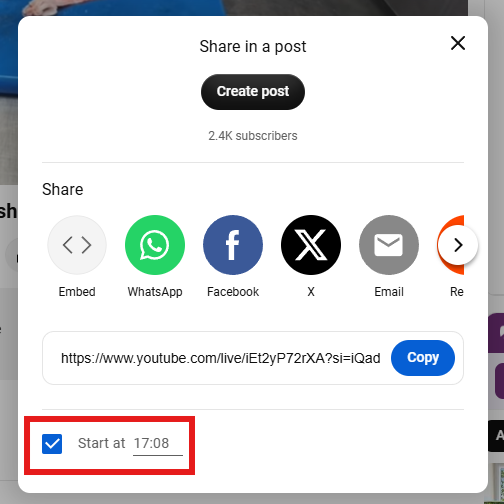
How to share at timestamp on desktop.
YouTube's new focus is now on their latest feature Video Clips, which is available to all creators and all videos.
Head over to YouTube Studio on desktop and select a video to go to your Video Details page. Click on "Clips" and then "Create video clip."
Here, you'll be able to select which part of the video you want to turn into a video clip, add an intro or outro, and upload it as you would any video.
You can edit your video clip in three ways:
- Select the text from the transcript and then click "Confirm selection."
- Click on the word you want to start in the transcript and click "Set as Start." Then click on the word you want to end and click "Set as end."
- Enter the timestamp you want to start and click "Set as Start". It's the same process as #2.
The transcript will be taken from YouTube's automatic transcript if you don't have your own.
Later on in the year, YouTube will expand Video Clips with AI-powered suggestions that'll find key highlights in your video.
However... at this current moment, this tool only creates 16:9 videos. It doesn't make Shorts.
Note that the keyword is "at this current moment."
Want to get clips for Shorts fast and free?
Source: https://support.google.com/youtube/thread/425735532/updating-how-you-share-video-moments
How to make Video Clips: https://support.google.com/youtube/answer/15824265
🧪 YouTube is testing new ways to connect with Posts.
If you're not aware, one of YouTube's current experiment puts Community Posts with images on the Shorts feed. Now, they're expanding it globally on the YouTube mobile app.
We presume this means only Community Posts made on the mobile app will be shown on the Shorts feed.
Head onto the YouTube mobile app, click on the + button to create a new post, add 1 - 10 images, and post.
You'll also be able to add text overlay directly over your images, and add royalty-free music (or generate your own with YouTube's Dream Track).
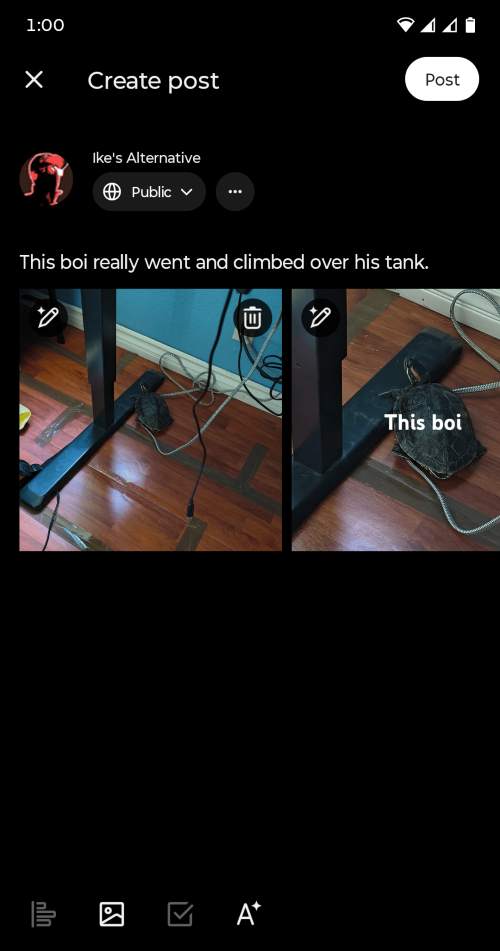
It'll be interesting to see the stats on Posts once more people are a part of this experiment. You might even notice some of your Posts showing up on the Realtime analytics.
Currently, YouTube doesn't show sources for Posts... so we're hoping that's something they have in plan.
Source: https://support.google.com/youtube/thread/18138167?hl=en&msgid=425138368
🎮 YouTube Playables are now available on mobile streaming.
For those who aren't sure what Playables are, these are games that you can play directly on YouTube (desktop or mobile). The selections aren't... mind-blowing, but YouTube has been adding more and more games.
Now they're letting mobile streamers play Playables directly on their stream. No third-party app needed.
To do this, start a stream on mobile. At the bottom, tap on the Playables icon and then tap "Play a game."
Source: https://support.google.com/youtube/answer/9228390