How to A/B Test YouTube Thumbnails with YouTube's Free Test & Compare Tool
YouTube finally released its own free A/B thumbnail testing tool inside YouTube Studio. Here is how it works, why it matters, and how to set it up the right way.

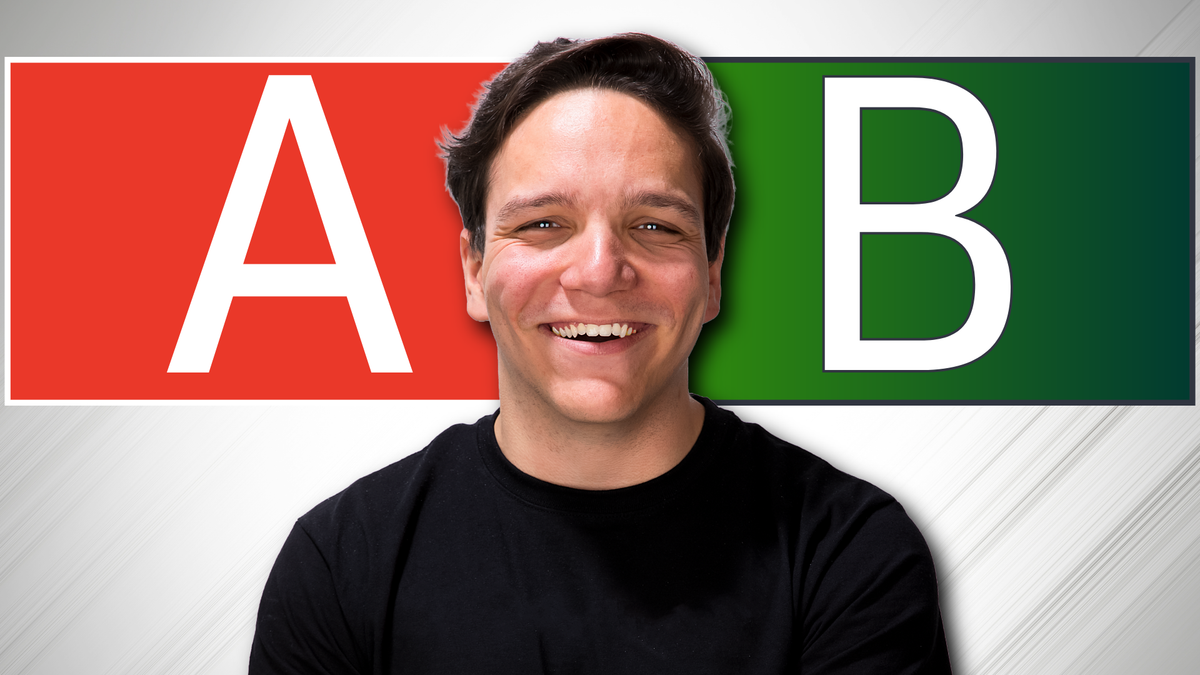
YouTube A/B thumbnail testing is a free, built-in YouTube Studio feature that lets creators upload two or three thumbnail variants for the same video, automatically serves each option to different viewers at the same time, and then picks a winner based on watch time rather than clicks alone.
The tool is available on desktop to channels with advanced verification, it works on both new uploads and existing videos, and it replaces the older, workaround-style thumbnail tests that tools like TubeBuddy pioneered before YouTube shipped a native solution.
If you have ever wondered which thumbnail your audience actually responds to, this is the feature that finally gives you a real answer.
YouTube finally released its own free A/B thumbnail testing tool. Here is how it works, why it picks winners by watch time, and how to set it up. Sponsored by Adobe Express. #AdobeAmbassadors #Ad
This blog post is not sponsored, however it does contain affiliate links to Adobe Express. If you choose to sign up through those links, I may earn a small commission at no extra cost to you, which helps support the free content I publish here at KDCC.
I am Andrew Kan, co-founder of the Kan Do Creators Community, and I spent years at TubeBuddy helping creators grow their channels, where thumbnail testing was one of the features we talked about the most. Now that YouTube has released its own native version, I want to walk you through what it does, why it matters, and how to actually use it well, so you can stop guessing and start knowing what works for your audience.
What Is YouTube A/B Thumbnail Testing?
YouTube A/B thumbnail testing is a native YouTube Studio experiment that shows different thumbnail options to different segments of your audience simultaneously, then measures which variant produces the most watch time on your video. You upload two thumbnails, or optionally three for what is sometimes called an A/B/C test, and YouTube handles the traffic split for you. Results typically arrive within two weeks, and in most cases YouTube will automatically swap in the winning thumbnail once the test concludes, although it is always worth manually verifying that the change actually went live on your video.
The feature lives inside YouTube Studio on desktop, it requires advanced channel verification, which is free and only takes a few minutes to complete, and it is currently unavailable for made-for-kids content or for age-restricted 18+ videos.
Why Does YouTube Thumbnail A/B Testing Matter So Much?
Thumbnails are one of the single biggest factors in whether a viewer clicks on your video in the first place. YouTube has publicly shared that 90% of the best-performing videos on the platform use custom thumbnails, and creators who actively test their thumbnails have reported click-through rate improvements of 37% and higher. Those are not small numbers, and they compound over time across an entire channel.
The hard truth that trips up most creators, myself included in the early days, is that the best thumbnail is almost never the one you personally like the most. It is the one your specific audience responds to, and the only reliable way to figure out which one that is involves putting options in front of real viewers and letting the data decide. Even MrBeast, who has built one of the largest channels on the platform, runs a team that creates up to 50 thumbnail variants per video, and his analytics tool ViewStats.com specifically tracks when creators swap their thumbnails, because thumbnail iteration is that central to how top channels operate. You do not need 50 options, however you probably need more than one.
How Is YouTube's A/B Test Different from the Old TubeBuddy A/B Testing?
This is a question I get constantly from creators who remember the old days, so I want to address it directly. When I worked at TubeBuddy, thumbnail A/B testing was one of the tool's biggest claims to fame, and we were always upfront about one important limitation. TubeBuddy's version was not a true A/B test, because it rotated thumbnails on a day-by-day basis, showing one option for a stretch of time and then swapping in the next option for a comparable stretch. That was a clever workaround, given that YouTube did not offer anything native at the time, although it also meant external variables like day of the week, breaking news cycles, and algorithmic surges could skew the results.
YouTube's version is a true A/B test. When a viewer lands on a page where your video could appear, YouTube randomly serves them one of your thumbnail variants, while another viewer in the same moment might see a different variant. The split happens concurrently across your entire audience, which removes the day-to-day noise that older tools had to work around, and it produces cleaner, more trustworthy results. If you were a longtime TubeBuddy A/B testing user, think of YouTube's native feature as the next evolution of what that workflow was always trying to accomplish.
Does YouTube Pick the Winner Based on Clicks or Watch Time?
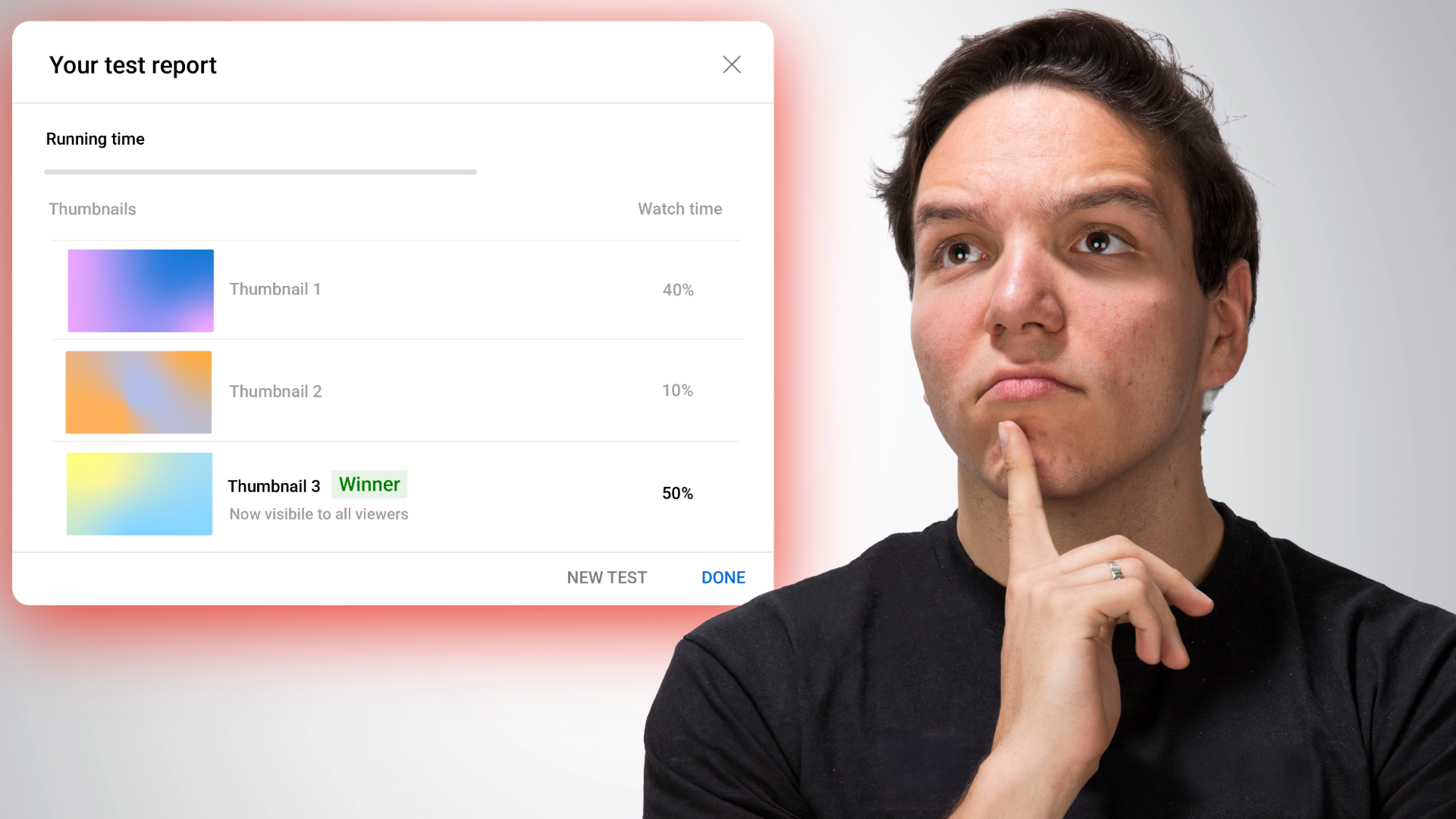
YouTube picks the winning thumbnail based on watch time, not raw click-through rate, and this distinction is one of the most important things to understand about the tool. A great thumbnail does not just get the click, it accurately communicates what the video is about, so that the viewers who do click are the viewers who actually want to stick around and watch. A misleading thumbnail might drive a huge initial click-through rate, however it will also drive people away within the first few seconds, which hurts your video in the algorithm far more than a modest CTR ever would.
By measuring watch time, YouTube is effectively rewarding thumbnails that attract the right viewers rather than the most viewers, and that alignment between thumbnail intent and video content is exactly what the algorithm has been pushing creators toward for years.
🎥 I break down the exact watch-time logic inside the video walkthrough, along with what to do when YouTube says there is not enough data to declare a winner: Watch the full tutorial here
How Do You Set Up YouTube A/B Thumbnail Testing Step by Step?
Getting started is straightforward once you know where the option lives, although YouTube has tucked it into a couple of different places depending on whether you are testing a new upload or an existing video.
For a brand new video, click Create in the top right corner of YouTube Studio, then select upload video. While your video is uploading, you will see the A/B testing option appear near the title field and inside the thumbnail section of the upload flow.
For an existing video, navigate to that video's edit page inside YouTube Studio. If you want to test titles, click A/B Testing in the title area. If you want to test thumbnails, scroll down to the thumbnail section, click the three-dot menu, and the A/B Testing option will reveal itself there.
Once you open the test setup, YouTube will give you three experiment types to choose from: Title Only, Thumbnail Only, and Title and Thumbnail together. Each of these deserves its own deep dive, and I am planning dedicated videos for each type, so make sure you subscribe so you do not miss those. For this walkthrough, we are focused on Thumbnail Only.
From there, click add thumbnail to upload your first option, click add thumbnail again for your second, and optionally add a third if you want to run an A/B/C test. Once your variants are uploaded, click set test, and then save your changes on the video itself, because I have watched plenty of creators skip that final save and wonder why their test never started.
How Different Should Your A/B Test Thumbnails Actually Be?
This is where most creators accidentally sabotage their own tests. YouTube has been explicit that if your thumbnail variants are too similar, the test will run longer, sometimes without ever producing a clear winner, because there simply is not enough difference between the options for the data to separate them. I have seen members of the KDCC Discord share tests where the only change between variants was a single piece of punctuation on the text overlay, and that kind of tweak is not going to move the needle.
When you build your second and third thumbnail, make them meaningfully different from each other. Try different dominant colors, different facial expressions, different camera angles, different text placements, or even different core concepts entirely. Remember, roughly 95% of a viewer's click decision happens before they consciously think about it, which means you are testing gut reactions, and gut reactions respond to big visual differences, not subtle ones.
What Is the Easiest Way to Make Multiple YouTube Thumbnails Quickly?
I already know what some of you are thinking, because I have thought it myself many times. It is already hard enough to make one great thumbnail, so how are you supposed to produce two or three strong variants for every upload without burning an entire afternoon on design work?
Any design tool can technically get the job done, however not every tool makes the iteration process fast. This is where Adobe Express has genuinely changed my workflow. I set up my brand colors and fonts once inside the platform, and from that point forward I can duplicate a base thumbnail, swap colors, try alternate templates, change expressions, and generate multiple variants in a fraction of the time it used to take me. The cross-device sync is also a quiet superpower, because I can start a thumbnail on my phone while I am away from my desk, then finish it on my computer later, or begin on desktop and polish it from my phone on the go.
I was using Adobe Express long before I became an Adobe Ambassador, and I actually made the thumbnail variants for the companion video to this post inside Adobe Express as well. If you want to try it yourself, the free version is a genuinely strong starting point, and you can grab it through my affiliate link at adobe.com/express to support the channel at no extra cost to you.
One more tip worth knowing: Adobe Express also makes it realistic to export your thumbnails at full 4K resolution, which is something YouTube has quietly started rewarding in the recommendation surfaces. I wrote a full breakdown of why 4K thumbnails matter and how to export them correctly, and you can read that companion post right here: How to Make 4K YouTube Thumbnails with Adobe Express.
What Happens When YouTube Cannot Pick a Clear Winner?
Sometimes your test will conclude and YouTube will tell you there were not enough impressions to declare a winner, or that the variants performed statistically the same. This is frustrating, however it is not the end of the road. When this happens, head into that video's analytics and open the Reach tab, where you can pull additional data on impressions, click-through rate, and viewer behavior for each thumbnail variant. YouTube's Ask Studio feature can also help you interpret the numbers if you are not sure what you are looking at, and between those two resources you can usually make an informed manual decision about which thumbnail to keep.
If you were testing an existing video that already had traction, I generally recommend switching to the new challenger thumbnail and monitoring the results over the following week, because there was a reason you wanted to test in the first place, and a week of real-world data on the new option will tell you a lot.
How Often Should You Be A/B Testing YouTube Thumbnails?
My honest answer is as often as you reasonably can. I like to joke that A/B stands for Always Be Testing, and the more tests you run, the faster you build an internal library of what your specific audience responds to. Patterns will start to emerge. You will notice that certain color palettes consistently outperform others on your channel, that close-up facial expressions work better than wide shots for your niche, or that text-heavy thumbnails lose to text-light ones in your audience segment. None of those insights are available to creators who only ever upload a single thumbnail and hope for the best.
🎥 If you want to see the full setup walkthrough, including the screens and menus I am describing above, watch the companion video here: How to A/B Test YouTube Thumbnails with YouTube's Free Tool
Join the KDCC Newsletter for More YouTube Growth Strategy
If this breakdown was useful, the best way to keep learning with me is to join the KDCC newsletter, where I share deeper YouTube strategy, new feature walkthroughs, and creator economy updates before they hit the blog. You can sign up at kdcc.social, and you will also find the invite to our KDCC Discord community, where creators at every stage are sharing their own A/B test results and learning from each other in real time.
If I Kan A/B test YouTube thumbnails, then You Kan Too.