YouTube Insights Explained: Big Changes From YouTube Analytics
YouTube Analytics is now YouTube Insights. Here are the biggest changes, where your old reports went, and what the new AI summaries still get wrong.

YouTube Insights is the new name for YouTube Analytics inside YouTube Studio, and it pairs the channel metrics you already know with AI-written summaries from Ask Studio.
YouTube rolled the rename out to creators on desktop in November 2026, and the same update turned the old Trends tab into a Research tab built around outlier scores. The detailed reports did not go anywhere, because Advanced mode still holds your custom date ranges, deeper breakdowns, and exports, so the biggest change is how your data gets introduced to you rather than what data you can see.
I walked through the whole update live on the Kan Do Creators Community channel, and this post covers what I found. We start with what YouTube Insights is and where your old Analytics went, then we get into why I think YouTube made this move in the first place.
From there we look at the new AI insight cards (and the moment the AI got my own numbers wrong on the same screen), the Trends tab turning into the Research tab with outlier scores, what changed in the Content tab, and why I think the Audience tab is better than it has ever been.
After that I show you my favorite way to cut down on clicks with saved reports in Advanced mode, explain the new co-views metric that changes how TV views get counted, and connect all of it to the upcoming changes to the YouTube Partner Program. The last section is where this all fits in your weekly routine, plus the one thing I wish more creators would do when YouTube changes something.
The line from the livestream that sums up this entire update is one I said near the end of the stream, and I stand by it: "Insights is going to be as good as you know how to use it." That is the lens for everything below.
You can watch the full livestream replay here, including the live Q&A with the chat.
What is YouTube Insights, and where did YouTube Analytics go?
When you open YouTube Studio now, the left sidebar no longer says Analytics, because it says Insights. Click it and you land on a page called Channel insights, with four buttons across the top for Content, Audience, Revenue, and Research, plus an Advanced mode button in the top right corner. The overview still gives you the familiar 7 day, 28 day, and 90 day views, your 48 hour views (which are now big and easy to read, and I like that), your total subscribers, and what people are watching right now.
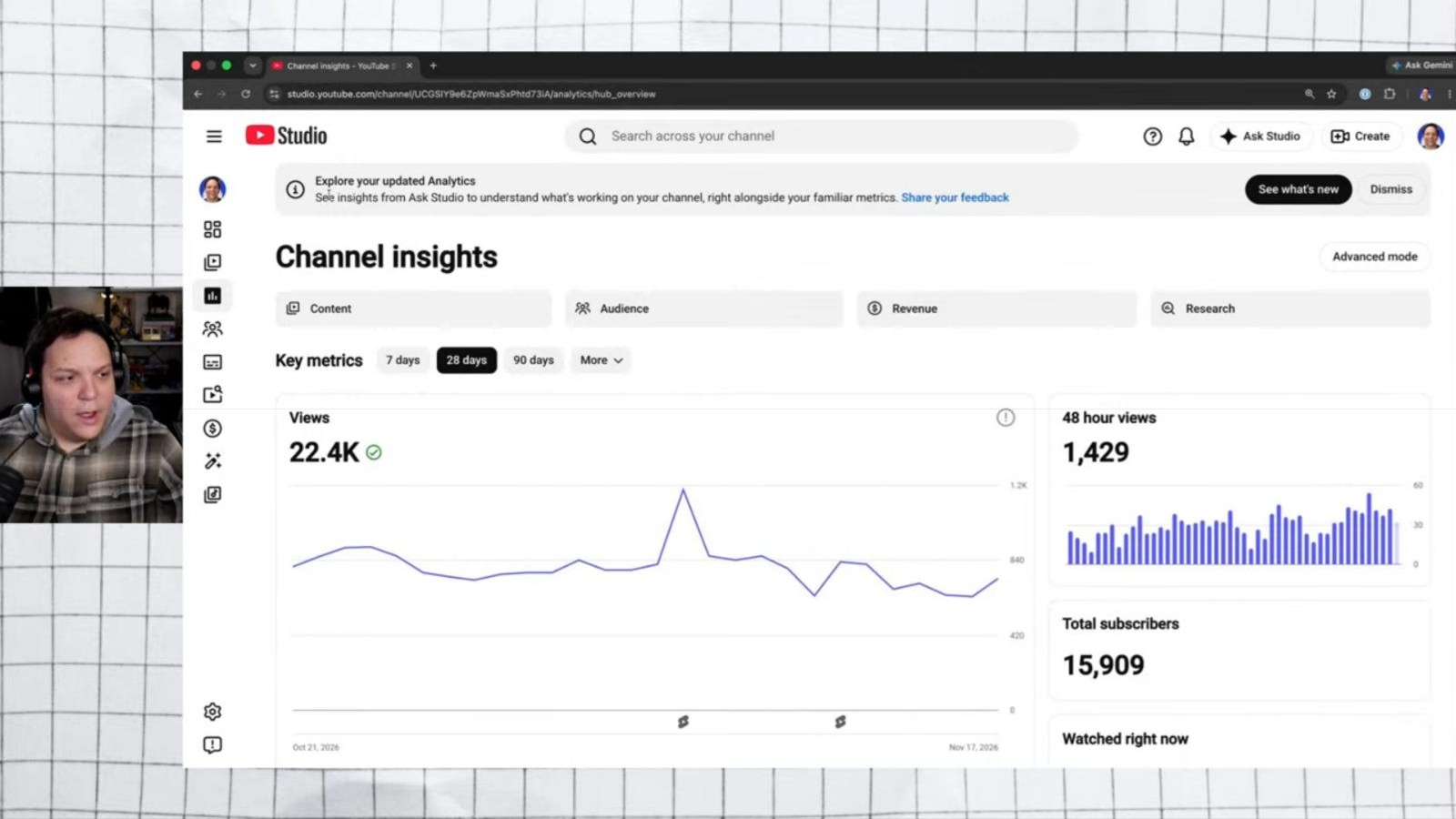
The naming is still a little messy, and I want to be upfront about that. The banner at the top of the page says "Explore your updated Analytics," the playlist report still says playlist analytics, and I caught myself calling it Analytics over and over on the stream. My read is that Insights and Analytics are one and the same right now, with Insights acting as the simpler front door and Advanced mode holding the deep data. YouTube has said in its own Help Community post that Insights is designed to complement your existing data and Analytics tools, which are still fully available in Studio, so if you were worried your reports got deleted, they did not.
If you want a refresher on what the individual metrics mean before you dig into the new layout, my older post on YouTube Analytics Explained: What Your Data Is Actually Telling You still applies, because the numbers themselves did not change, only where they live. You can also look up any term in the KDCC YouTube Glossary.
Why did YouTube rename Analytics to Insights?
This part is my opinion, and I am labeling it that way on purpose. Year after year, I would hear creators say that YouTube Analytics was too hard, that they did not even look at it, and that looking at it made them feel bad. When you compare it with TikTok and Instagram, YouTube had the deepest data of any platform, and it also had the most intimidating screen. If I am YouTube, I have to answer for that, because if the data feels like a place where new creators do not belong, the next wave of creators never comes back to it.
That is how we got YouTube Insights, in my view. It gives you top-down summaries first, so a newer creator can understand what is happening without decoding forty charts, and it keeps the depth one click away for those of us who live in the data.
There is a second reason I think Ask Studio sits right on top of Insights. I see creators paste their analytics into ChatGPT all the time, in our Discord, in coaching calls, and in my consulting work. Ask Studio runs on Gemini, Google's own AI, so building AI summaries straight into Studio keeps creators inside Google's own tools instead of sending their data somewhere else. I also think this is a mobile play, because the simpler card layout is much closer to how insights look on a phone, and more creators than ever check their channel from their phone first.
What are the new AI insight cards, and can you trust them?
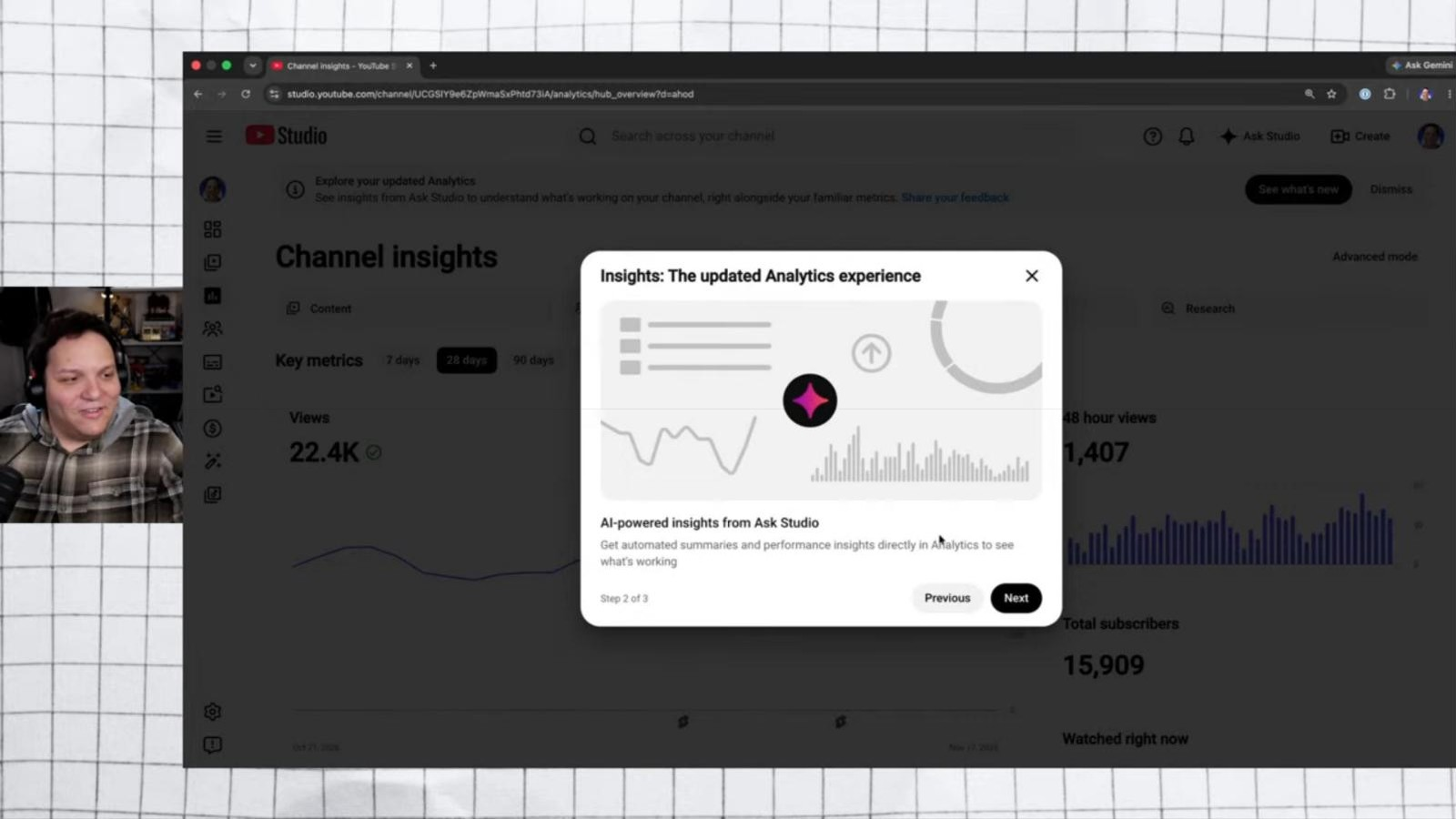
The headline feature of YouTube Insights is the AI summary from Ask Studio. YouTube introduces it with a short walkthrough the first time you open the page, and it describes the feature as automated summaries and performance insights directly in Analytics so you can see what is working. Creators who are eligible for Ask Studio see an extra AI card on the overview page, plus buttons like "Analyze my audience loyalty" that open a longer report.
Here is the honest part. On my own channel, the AI summary said my views held steady at 22,447, led by my search-driven tutorials and Shorts, and it said YouTube search was driving "over 58%" of my overall traffic. The card sitting right below it on the same page said YouTube search was 66 percent of my views for the same 28 days. Both numbers can be technically true at the same time, but they do not line up one to one, and the AI was working from the exact same page I was looking at. I also did not love that it said my channel "generated" views and watch time, because I would rather it said earned. I get why the AI uses that word, but the views came from people choosing to watch.
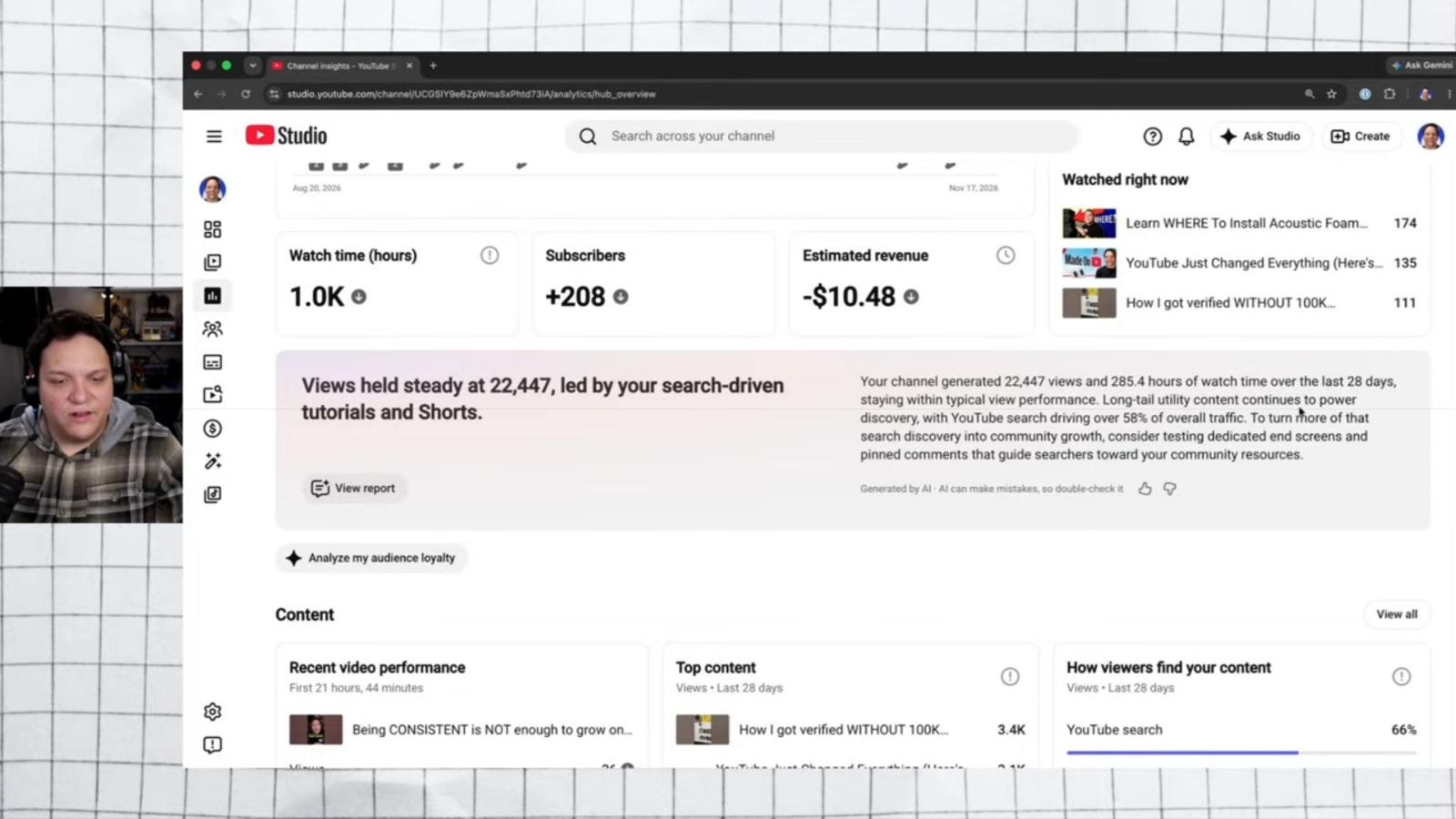
One common misconception I hear is that YouTube Insights is going to replace creators, educators, and strategists. It is not, at least not right now, because it still gets things wrong that are sitting on the same screen. People in the chat said it best during the stream, which is that humans will always bring something the summary cannot. Treat the AI card as a starting point that tells you where to look, and then click into the real numbers before you change anything about your strategy. YouTube even prints the warning right on the card, which I appreciate.
What happened to the Trends tab in YouTube Insights?
Eagle-eyed creators will notice that the Trends tab is gone, and in its place is a Research tab. It is not the old Research tab you might remember, either. At the top of the page there is a banner that says "Access your saved Trends keywords on mobile, or download them now," so if you saved keywords in the old Trends tab, download them as a file or check them in the Studio mobile app before you lose track of them.
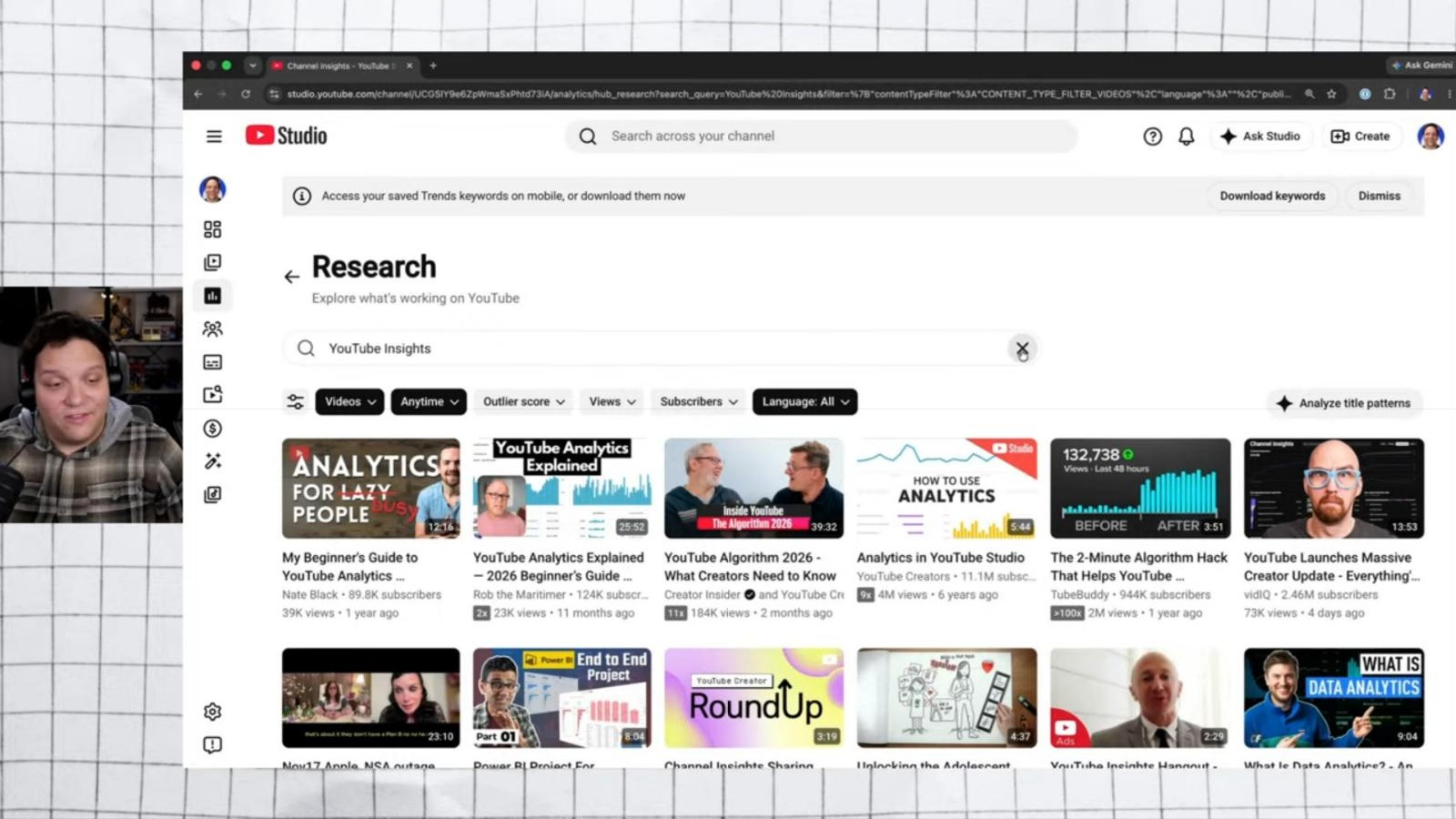
The biggest addition is the outlier score, so let me explain it in plain terms. An outlier is a video that performs much better than normal for the channel that posted it. If a video has an 11x badge, it got about eleven times the views that channel usually gets, and a badge that reads more than 100x means the video blew way past that channel's typical baseline. Most creators used to get outlier scores from third-party tools, so having them built into YouTube Studio from the start is a big deal for newer creators. It also shows recent uploads in your niche, and some of the channels it grouped me with surprised me, which is a useful gut check if you are not sure what niche YouTube thinks you are in.
You can filter results by outlier score, views, subscribers, video age, and even language, and you can click "Analyze title patterns" to have Ask Studio look for patterns in the titles that are working. My honest take is that I thought the old Trends tab was really insightful, and I want the Research tab to get better than it is today. The name history here is also a little wild. I have watched this feature go from Trends to Research to Inspiration, back to Trends, and now to Research again, so I would not get too attached to any one label.
What changed in the Content tab?
The Content tab still breaks your channel down by All, Videos, Shorts, Live, Posts, and Playlists, and each one has its own set of numbers. One thing I noticed right away is that my Content tab kept opening on Shorts instead of All, and when I picked 90 days on the overview, that date range did not always carry over. I would love for it to remember my choice, so that is going straight into my feedback to YouTube.
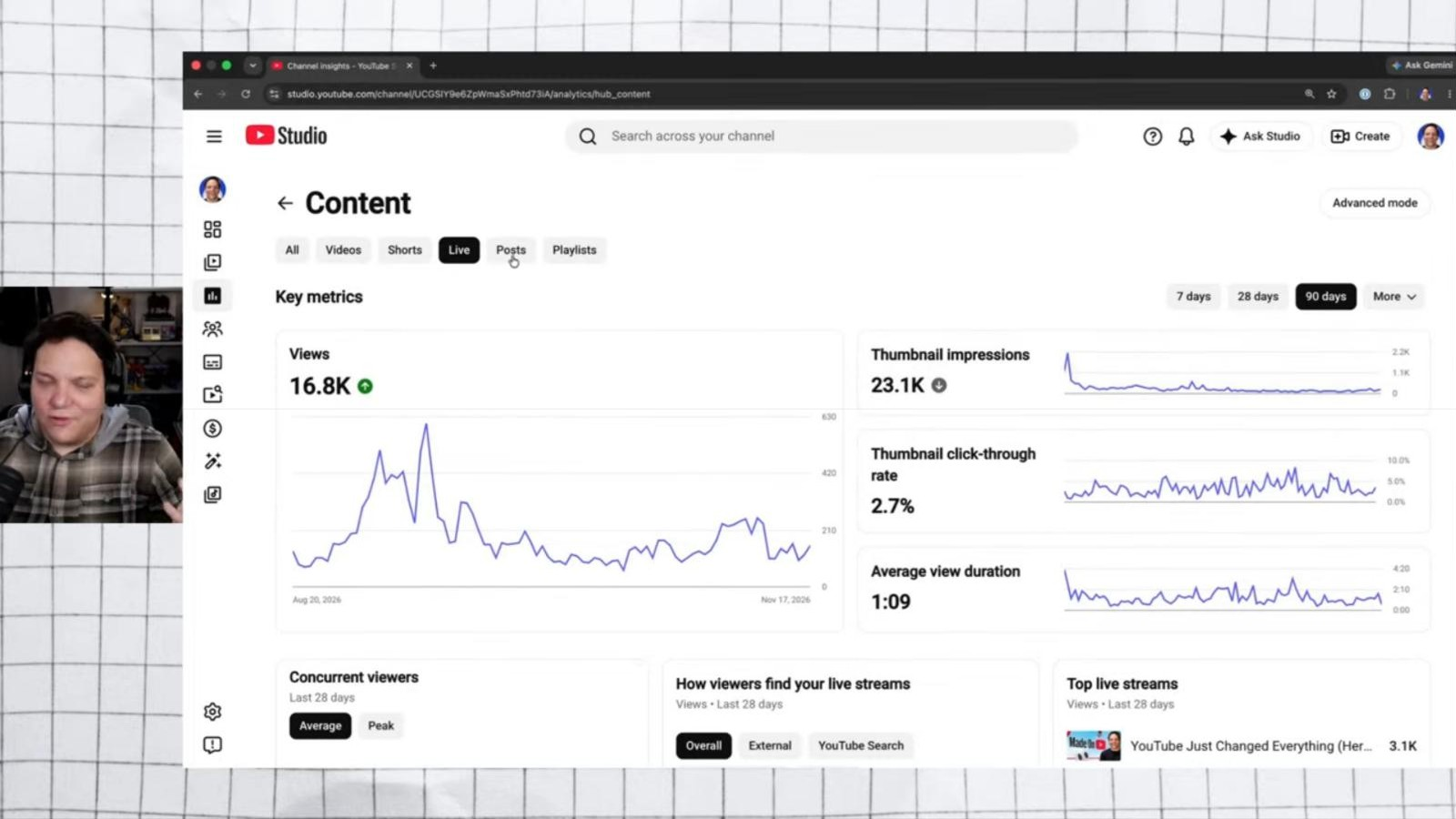
Thumbnail impressions are still here, and you can still click through to see how they break down by traffic source. On my channel, one view of the data showed about 37,400 thumbnail impressions with an 8.7 percent click-through rate, and I could sort my top videos by impressions and watch time much more easily than I could in the old layout. If impressions and click-through rate still feel fuzzy, my guide to YouTube impressions and click-through rate breaks them down.
The bigger lesson here has nothing to do with the redesign. I have not been uploading much lately, and YouTube search is still sending people to my Shorts, my playlists, and my older tutorials. External traffic still shows up too, from Google search, ChatGPT, and Bing, which is why I keep telling creators not to discount search. A YouTube video keeps working long after the day you post it, and Insights makes that a little easier to see at a glance.
A small quality of life feature I appreciate is that you can now view your community posts right inside Studio with a button that opens the post on the page. I posted a poll from 2024 asking how people usually watch YouTube, and people are still voting on it, which is a nice reminder that posts have a long life too.
Is the Audience tab better in YouTube Insights?
In my opinion, the Audience tab is better than it has ever been, and it is the tab I would send most creators to first. It compares your monthly audience with your subscribers, and that one comparison is an actionable insight. If you are reaching a lot of people and only a small slice of them subscribe, you need a better call to action, and now you can see that gap without building a custom report.
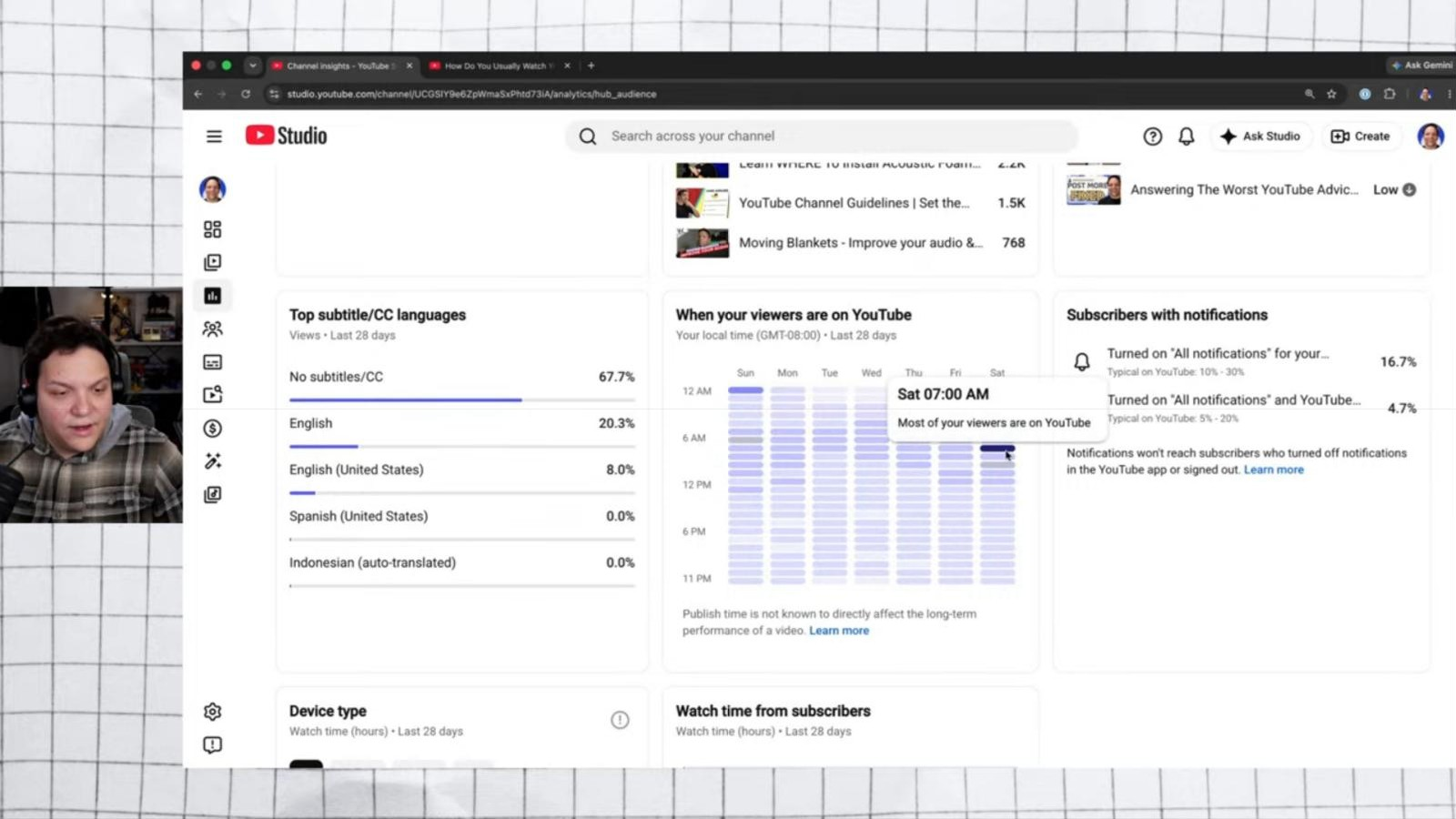
The tab also splits your viewers into new, casual, and regular groups, and each group watches different things. My new viewers find me through tutorials and Shorts, my casual viewers lean toward my live streams, and my regular viewers watch an even wider mix. It shows you how many subscribers turned on all notifications, too, and mine sits at 16.7 percent, against a typical range on YouTube of 10 to 30 percent.
The "When your viewers are on YouTube" chart got new colors, and the darker blue makes it much easier to read than the old purple graph. YouTube notes right on the chart that publish time is not known to directly affect the long-term performance of a video, so use it as a guide and not a rule. My favorite card is watch time from subscribers, because most of my watch time does not come from my subscribers. When someone tells me they focus only on their subscribers, this is the page I want to show them.
The Videos view also tells you how your audience splits across formats. Over the last 90 days, 56 percent of my audience watched only my videos, 42 percent watched both videos and Shorts, and 2 percent watched only Shorts. That kind of split is worth checking on your own channel before you decide where to spend your time.
Context matters here, too, because my channel reaches about 12,000 people right now, and when people tell me that sounds small, I remind them that 12,000 people is enough to sell out five or six Broadway theaters. If you want a visual way to feel that number, try the YouTube Audience Visualizer.
Is Advanced mode still in YouTube Insights?
Yes, and it is as useful as ever. Advanced mode is where your custom date ranges, detailed tables, comparisons, and exports live, and it is also where you will find the newer audience metrics YouTube added over the past year. If Insights feels too simple, or you feel like it takes too many clicks to reach metrics like engaged views, Advanced mode is your answer.
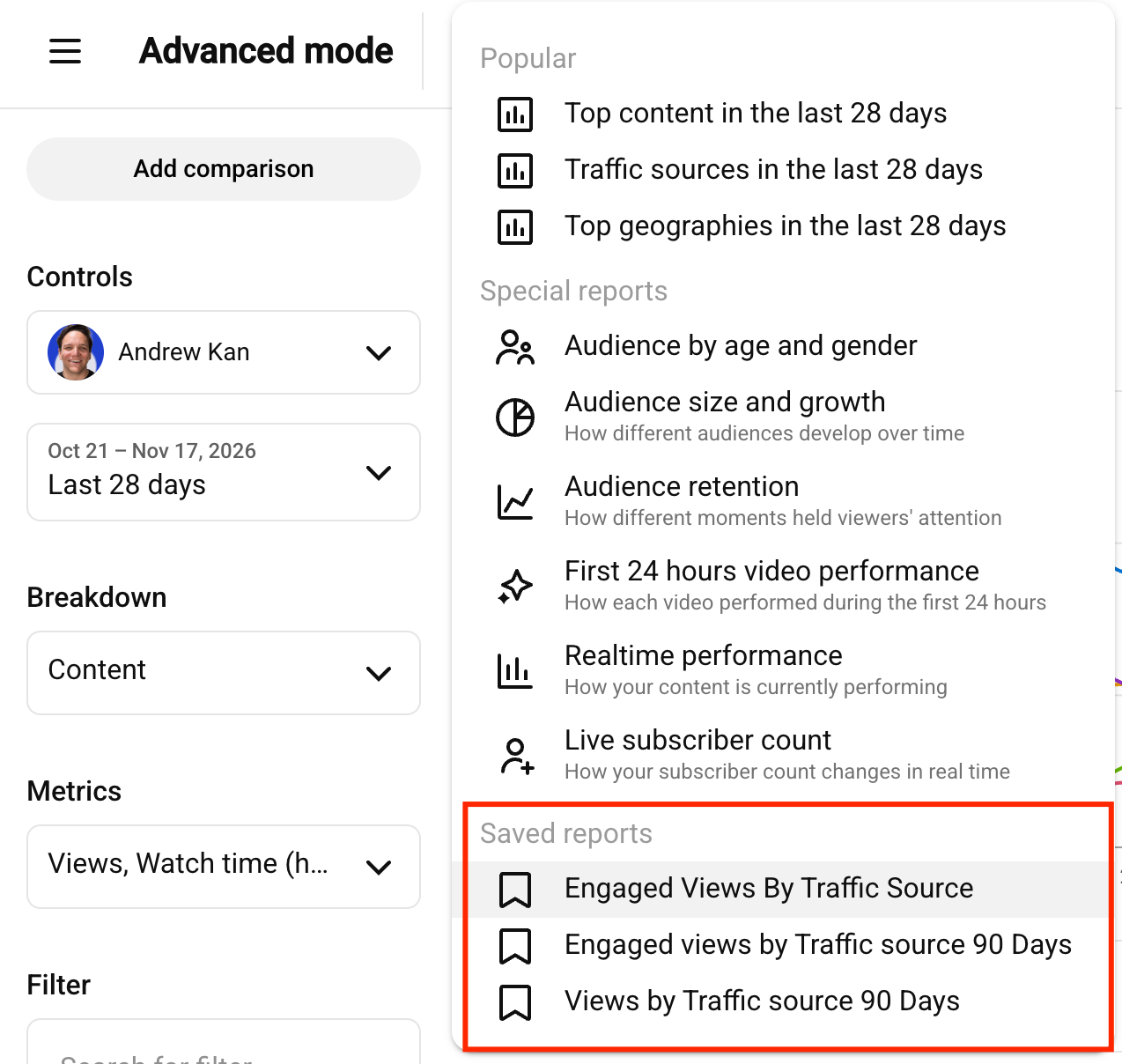
Pro tip, and this is one most creators do not know about: you can save the views you check all the time. Build the chart the way you like it in Advanced mode, set the date range, click the bookmark icon, and the report shows up in your saved reports list. I keep one for engaged views by traffic source over 90 days, because engaged views do not show up in the default view, and the saved report gets me there in about three clicks. The date range saves with the report, so a 90 day report opens as a 90 day report every time.
You can save just about any breakdown this way. I keep an eye on operating system (Android is the clear leader on my channel, followed by Windows, iOS, and Mac), YouTube product, and even sharing service, so I know whether people are copying my links, sending them on WhatsApp, or posting them on X. I even found three viewers watching me in YouTube Music, which made me laugh, because nobody wants to hear me sing.
I walk through building and saving these reports step by step in the livestream, so jump to the Advanced mode section of the replay if you want to follow along on your own channel.
What are co-views, and how do they change your view count?
Co-views are YouTube's estimate of how many people are watching a video together on one TV. Until now, one playback on a TV counted as one public view, even if a whole family was watching from the couch. YouTube now adds estimated co-views to the public view count for TV playback across long-form videos, Shorts, and live streams, and it does not count co-views on phones, tablets, or desktop.
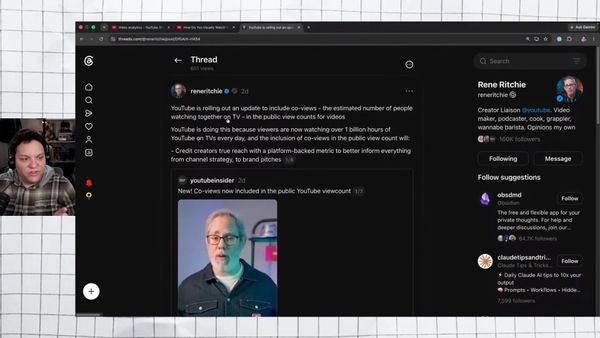
I want to give credit to Rene Ritchie, YouTube's Creator Liaison, because his post was the clearest explanation of this change, and you should be following him if you are not already. According to YouTube, viewers watch more than one billion hours of YouTube on TV screens every day, and the point of co-views is to credit creators with a more complete picture of who is watching, in a way that lines up with how the TV industry measures audiences.
Here is what that means for your channel in plain terms. Co-views are not applied retroactively, so your historical view counts will not change, and they apply to new TV views going forward. Co-views do not affect ad revenue, AdSense, or YouTube Partner Program thresholds, and they do not change thumbnail impressions, click-through rate, or average view duration. Watch time will include the co-view audience so that it stays consistent with the new public view counts. YouTube also added a co-view rate in Advanced mode under Device type, and if you divide your total views by that co-view rate, you get your views without co-viewers. YouTube's example is that a co-view rate of 1.10 means that out of every 1,100 TV views, 1,000 came from the device playback and 100 came from co-viewers. The older private metric called Views (Co-viewed) is being retired in May 2027, so if you want that data for your records, export it before then.
I have a different angle on this one because I used to work for a TV channel. For years, the traditional cable and linear TV world pointed at YouTube and said that YouTube did not count viewers the way TV does. Co-views are YouTube's answer to that, and in my view this is less about you and me as individual creators and more about YouTube competing to be the number one thing people watch on TV. It is a bit of a mic drop from YouTube, and it also gives you a platform-backed number to bring into brand deal conversations.
Does YouTube Insights change how you get monetized?
YouTube Insights itself does not change how you earn, because the rename is about how the data is presented. What it does do is make your numbers easier to read at a time when the monetization bar is going up. Starting February 1, 2027, new channels applying to the YouTube Partner Program for ad and Premium revenue sharing will need 1,000 subscribers plus either 8,000 qualified watch hours in the last 365 days or 20 million qualified Shorts views in the last 90 days, which is double the current 4,000 hours or 10 million Shorts views. Channels already in the program keep their place, but they still need to accept the updated terms.
For a lot of creators, getting monetized is a huge milestone, and it was a huge milestone for me, too, because I would not have this career without it. My advice is the same as always, which is to not let AdSense be your only income. Look into affiliate programs, including YouTube's own, and build other ways to earn so that one change on the platform does not decide your month. If you are chasing the new watch hour bar, the Audience tab and saved reports in Advanced mode are where you will find out which videos are earning that watch time.
Where does YouTube Insights fit in your workflow?
Look, the part of this I have to admit out loud is that my own numbers looked a little quiet during this walkthrough, because I had a lot going on in my life and I was not uploading much. I also had to watch the AI summary give me a number that did not match the card right below it, live, in front of everyone. That is exactly why I think this update is worth learning, because Insights showed me what was still working while I was away (search, older tutorials, and Shorts), and it showed me just as clearly that I cannot hand my strategy to a summary card.
Here is the working creator's one-line summary: use the Insights overview to spot what changed, use the AI card to decide where to look, and use Advanced mode to confirm it before you act.
There is one more thing I cannot stress enough, and it is feedback. I see so many creators complain about YouTube changes and never send feedback, and YouTube does listen. The Send feedback option lives in the bottom corner of Studio, and you can attach a screenshot, so if something in Insights confuses you or slows you down, tell them. My honest worry is that YouTube might roll the name back to Analytics someday (the look feels like it is here to stay, but time will tell on the name), and if that happens we will all have to relearn it again, which is why your feedback now matters.
How can you learn YouTube Insights faster?
You do not have to figure this out alone. Ike and I built the Kan Do Creators Community to help creators get better on YouTube, with a free community plus a paid group coaching membership that includes a seven day trial. You can also grab the free KANDO Method worksheet, which walks you through Knowledge, Audience, Novelty, Data, and Optimization, and Insights fits right into that Data step. We have helped members reach the Partner Program, and we go live on Wednesdays at 2 PM Pacific time to answer your questions about Insights and everything else on YouTube. If you want these updates in your inbox, join the KDCC newsletter.
I have been on this platform for a long time, starting as the first employee at TubeBuddy and now consulting and teaching creators, and every big change feels confusing at first. We all got used to the last YouTube Studio redesign, and we will get used to this one, too. If you want to know more about who I am, you can read my story from TubeBuddy to Salesforce to building the Kan Do Creators Community, and you can meet Ike in her post on going from TubeBuddy to the Kan Do Creators.
Do you like the new YouTube Insights, or do you miss the classic YouTube Analytics? Let me know in the comments on the livestream, because I am curious, and I read them.
If I Kan, You Kan Too.