YouTube Multi-Language Thumbnails Are Here. Here Is How to Translate Yours for Free.
YouTube multi-language thumbnails let one long-form video greet viewers in their own language. Here is why it matters and how to translate your thumbnails for free in Adobe Express.

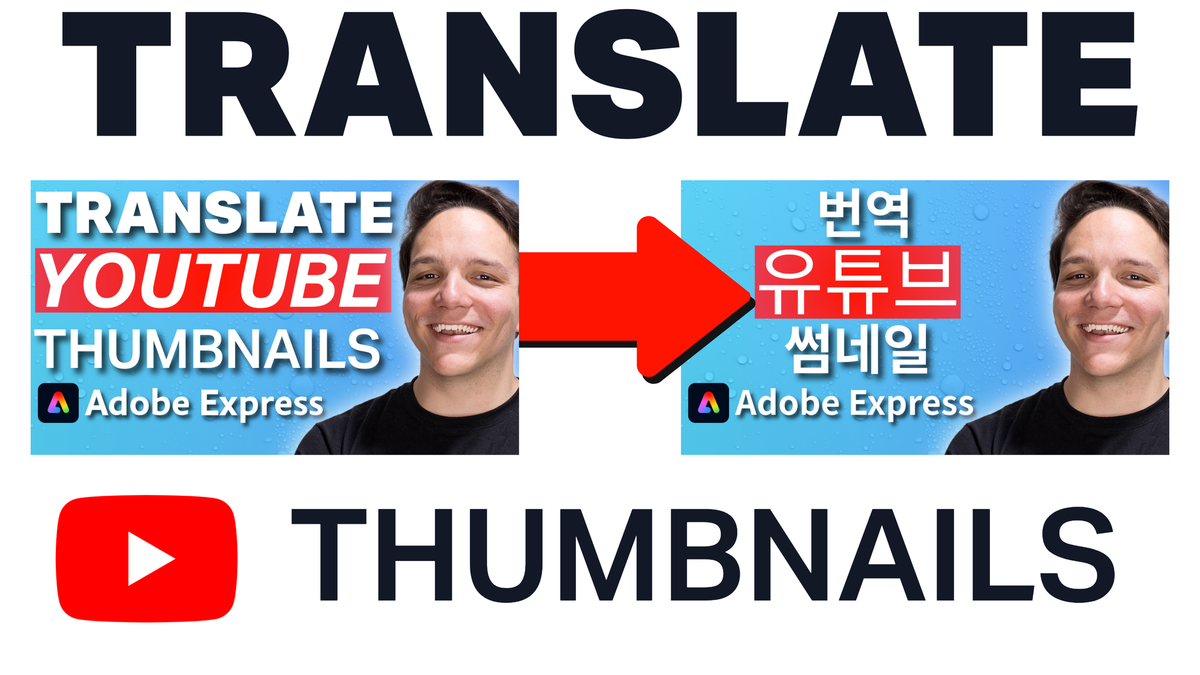
YouTube multi-language thumbnails are localized thumbnail images that let one long-form video show a different thumbnail to viewers based on the language they watch in. YouTube added this on top of multi-language audio and the recent jump to 4K thumbnails, so a single upload can now greet someone in India, Brazil, or Korea in their own language without you building and managing separate channels. By the end of this post you will understand what the feature is, why it matters for your global watch time, and how I translate my own thumbnails for free in Adobe Express.
Before I go any further, I want to be upfront. The companion video for this post was sponsored by Adobe Express, and I work with Adobe Express as an ambassador, so the Adobe Express link in this post is an affiliate link that can earn the Kan Do Creators Community a commission at no extra cost to you. This blog post itself is not sponsored, and everything below is the same process I use on my own channel.
What Are YouTube Multi-Language Thumbnails?
Multi-language thumbnails let you attach a translated version of your thumbnail to each language you support on a long-form video, and YouTube then shows the right one to each viewer automatically. This sits alongside the multi-language features YouTube has been building out, which include multi-language audio tracks where you can upload your own dubs or try auto dubbing that translates your content with the help of some AI. YouTube has been putting real attention into thumbnails lately, and this feature is the visual half of the same localization push that already gave us translated titles, descriptions, and audio.
The important detail is that this is a first-party YouTube feature for long-form videos, so you are not stitching together a workaround or spinning up a second channel. One video holds all of your language versions, and if you ever want to know exactly what a term like localization or thumbnail means in the YouTube context, the KDCC YouTube Glossary breaks down the vocabulary in plain language.
Why Does Reaching a Global Audience Matter for Your Channel?
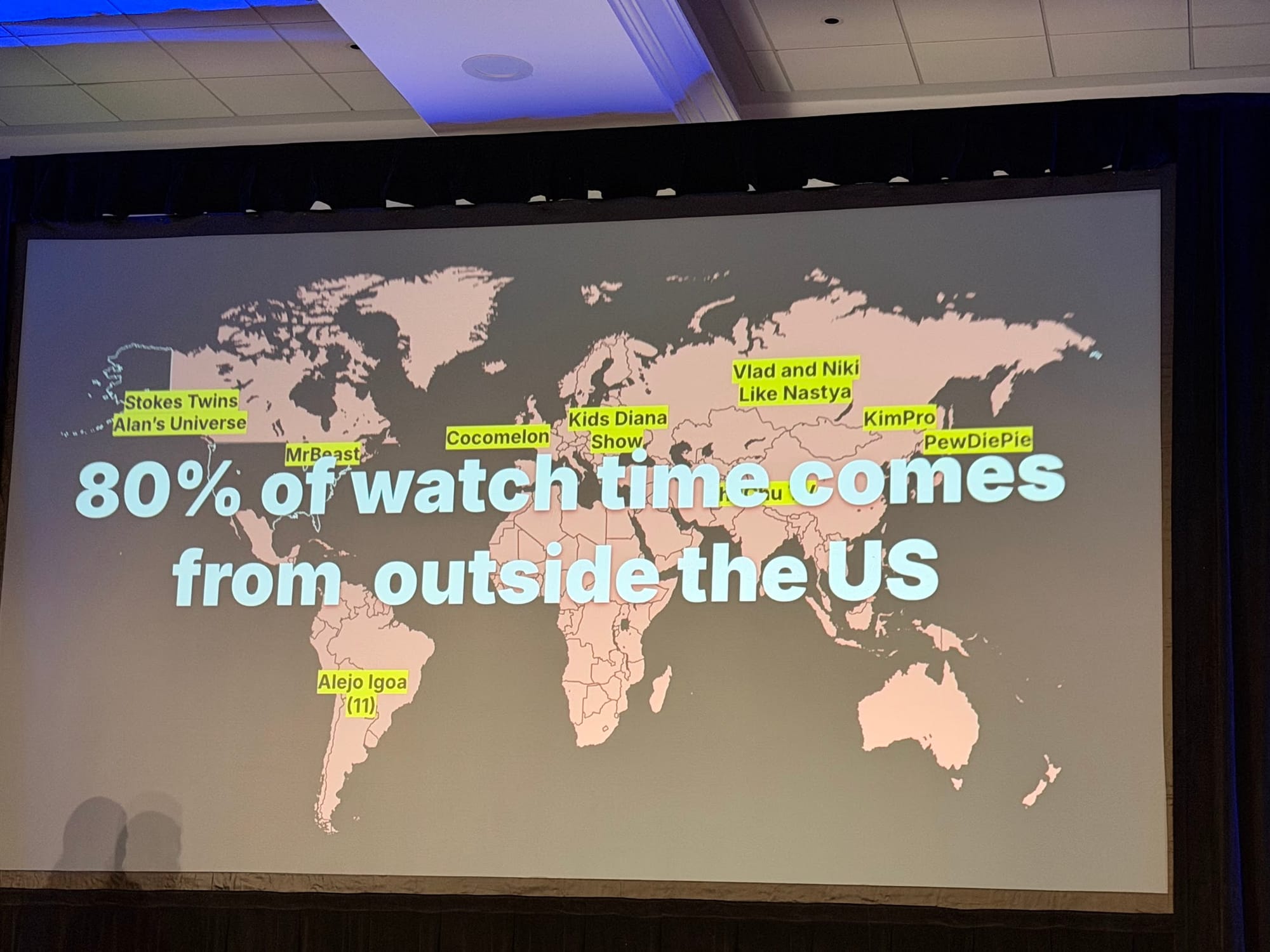
When I attended Kidscreen, I learned something directly from a YouTube partner presentation that reframed how I think about my channel, which is that roughly 80 percent of watch time on YouTube comes from outside of the United States. That number is a reminder that YouTube is a truly global platform, and it means the majority of the people who could be watching you do not speak English as their first language. If your thumbnail only ever speaks one language, you are asking most of the planet to click on something they cannot fully read.
Localization is one of the few growth levers that expands your potential audience rather than just competing harder for the one you already have. You can pair translated thumbnails with dubbed or auto-dubbed audio, and when the picture and the sound both meet a viewer in their language, you give them every reason to click and to stay.
How Do Multi-Language Thumbnails Work for the People Watching?
YouTube says audio tracks default to a viewer's preferred language, which is determined by their watch history, and viewers can change that preference in their settings or switch between available languages inside the video player. Thumbnails follow the same logic, so a viewer whose account is set to Portuguese sees your Portuguese thumbnail, while a viewer set to German sees the German one, all from the same video. The viewer does not have to do anything, and most of them will never realize there was ever another version.
That invisibility is the point, because a good localized thumbnail should feel native rather than translated. For the video tied to this post I set up thumbnails and audio in several languages, and if you are reading or watching in a language that is not English, I would genuinely love to know in the comments whether the translated thumbnail is what brought you in.
Do Translated Thumbnails Help You Get Found in Search?
Localization does more than serve existing subscribers, because it also feeds YouTube's search and discovery system. YouTube has said that once your videos are translated, they can be found when viewers search using a translated title and description, and its search systems read those translated titles and descriptions to return accurate results in the language the viewer speaks. Your thumbnail is what wins the click once you surface in those results, so a translated title with an English thumbnail is only doing half of the job.
When the title, the description, the thumbnail, and ideally the audio all line up in one language, you become a real result for searches you were invisible to before. That is how a single video quietly starts earning views from countries you were not intentionally targeting.
Which Countries Should You Translate Your Thumbnails Into?
The smartest place to start is your own data, not a guess about which languages are biggest globally. In YouTube Studio on a computer, open Analytics, click into Advanced mode, then use the top drop-down to select top geographies for the last 28 days, and you will see exactly which countries are already watching you. You can also switch to the lifetime view to see where your audience has come from over the whole life of the channel, which smooths out any single strong month.
Based on my own channel data I chose to translate into languages for India, the Philippines, Brazil, Germany, and Indonesia, and I added Japan and Korea because those are markets I want to grow in next. If you would rather see your reach on a map instead of a table, the KDCC YouTube Audience Visualizer turns your geography data into something you can read at a glance. If you do not have much international data yet, that is completely fine, because you can translate ahead of the audience and build the demand rather than waiting for it to appear first.
How Do You Translate a YouTube Thumbnail in Adobe Express for Free?
Adobe Express runs in a web browser and has a completely free version, which is why I use it for this. You start by making your first thumbnail in one language, either from scratch or from one of the Adobe Express templates, and if you already built a thumbnail in Photoshop you can upload that PSD file and Adobe Express will bring it in as an editable design. Once your base thumbnail exists, you use the translate feature, which you can reach by selecting your file and choosing translate, or by opening the design, clicking edit page, and then clicking translate on the left-hand side.
From there you pick the language you want, Adobe Express does the translation, and after a few seconds you have your translated thumbnail ready to review. The list already covers dozens of languages and Adobe keeps adding more, so it is worth checking the current options rather than assuming a language is missing. The full click-by-click walkthrough, including where every button lives, is in the companion video, because some of this is far easier to follow when you can watch the screen.
Why Does Your Font Choice Make or Break the Translation?
This is the step most people skip, and it is the one that quietly breaks thumbnails. Adobe Express uses Adobe fonts, and not every font supports every writing system, so a font that looks perfect in English can fall apart the moment you translate into Korean, Japanese, Hindi, or Thai. Before you commit to a design, check that the font you chose actually supports the languages you plan to translate into, because fixing this after the fact means redoing the look of every version.
The translation also uses AI, which means it is fast but not flawless, so you should read every result and make small tweaks where the wording or the spacing looks off. Longer translated text can push past where your English text sat, so expect to nudge a few things back into place before you download. When everything looks right, you click download, select all pages, and you have a clean set of translated thumbnails ready to upload.
How Do You Add Your Translated Thumbnails in YouTube Studio?
Head back to YouTube Studio on a computer, open the video you want to localize, and select the languages section for that video. You find the language you are adding from the list, you click add, and you upload the translated thumbnail for that language, repeating the process for each one. After your changes are in, you can switch between the languages right there to preview how each version looks, which is a quick way to catch anything that needs one more tweak.
One thing worth keeping in mind is that YouTube treats languages and countries as separate things, and some countries have more than one national language, so choose based on the language your viewers actually watch in rather than assuming one language per country. If you want to see this global setup in action, the video tied to this post has the thumbnails and audio running in multiple languages so you can watch the feature behave the way your viewers will experience it.
What Should You Do Right Now?
Open YouTube Studio, pull your top geographies in Advanced mode, and write down the three to five languages your audience is already watching in, because that list is your translation plan. From there you can build your base thumbnail, translate it for free in Adobe Express, check your fonts, and add each version in the languages section of your video, and your channel becomes global in the time it used to take to make a single thumbnail. If you want more breakdowns like this one, the KDCC newsletter and the Kan Do Creators Community are where I share what is changing on YouTube and what to do about it, and you can read more about my background going from TubeBuddy to building KDCC in this post.