How to Make 4K YouTube Thumbnails with Adobe Express (Free)
YouTube updated its thumbnail standard to 3840 x 2160. Here's what that means for your channel and how to resize old thumbnails and build new ones with Adobe Express.

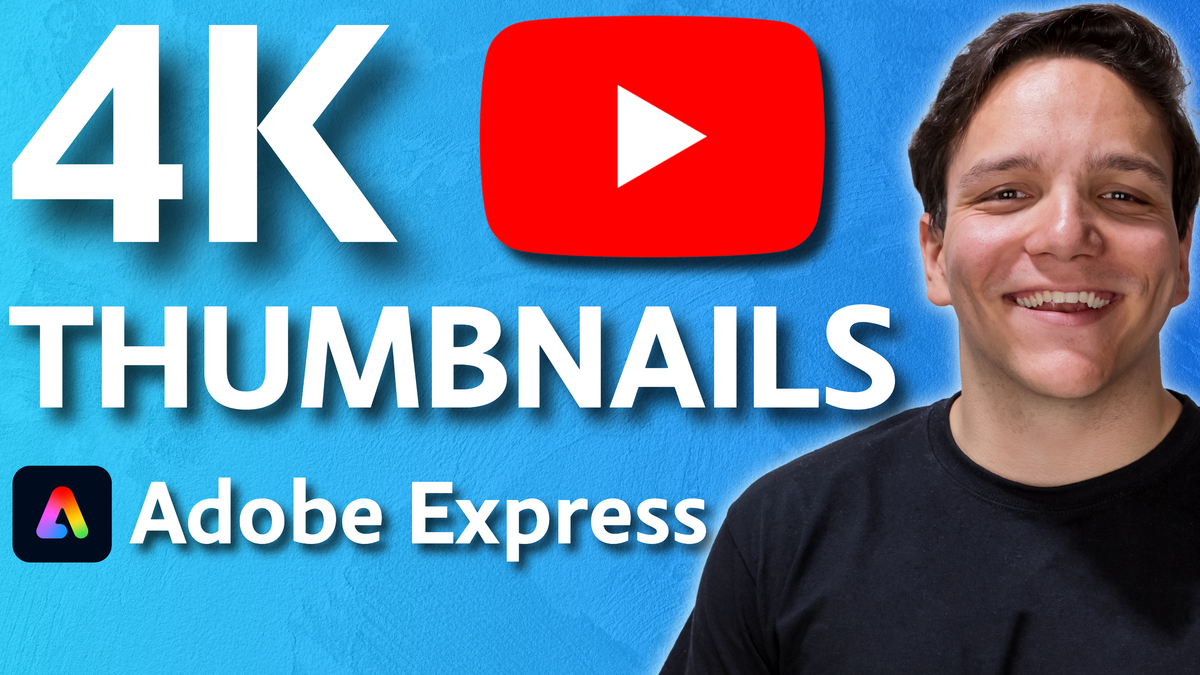
YouTube 4K thumbnails are the platform's updated image standard, requiring creators to upload custom thumbnails at 3840 x 2160 pixels instead of the old 1280 x 720 resolution. This change gives your thumbnails significantly more real estate, crisper detail on large screens and high-resolution displays, and a higher ceiling for design quality, but only if your workflow is built to match it. In this post, I'm breaking down what the 4K thumbnail update means for your channel, why it matters, and how to resize your existing thumbnails and build new ones using Adobe Express.
Watch the full tutorial: Andrew Kan designs 4K YouTube thumbnails live inside Adobe Express, including background removal, text effects, layering, and the Thumbnail resizing workflow! This livestream is sponsored by Adobe Express.
Before I go any further, I want to be upfront: this is a sponsored post in partnership with Adobe Express. I'm an Adobe Express Ambassador, and links in this post are affiliate links. That said, I was using Adobe Express long before I ever partnered with them, so everything you'll read here is genuinely what I use in my own thumbnail workflow.
What Is the YouTube 4K Thumbnail Standard?
YouTube's updated thumbnail specification asks creators to upload images at 3840 x 2160 pixels, which is true consumer 4K resolution, four times the pixel count of the old 1080p equivalent standard of 1280 x 720. If you want the full breakdown of exactly what changed and when, I covered it in detail in YouTube's Thumbnail Size Update. The old standard is not gone overnight, and thumbnails you've already uploaded won't disappear, but new thumbnails built at the higher resolution will display sharper on 4K monitors, large-format televisions, and any display with high pixel density.
For creators, this shift is both an opportunity and a new responsibility. More resolution means more room to design, more room for readable text, and more room to get creative with layered elements. It also means old thumbnails built at 720p will look noticeably softer on modern screens if you leave them untouched.
The good news is that getting from the old standard to the new one is faster than you'd expect, and you don't need a paid subscription to get started.
Why Does the 4K Thumbnail Update Actually Matter for Your Channel?
Thumbnails are the first impression your video makes. A viewer on a 4K monitor or a large smart TV who sees a pixelated, undersized thumbnail next to a crisp competitor is going to notice, even if they can't articulate exactly why. Perceived production value matters, and your thumbnail is part of that perception.
There's also a practical reason to care: YouTube A/B tests thumbnails, and the platform is actively updating its template library in real time. Building in 4K now means your thumbnails are ready for wherever the platform goes next. Future-proofing your creative assets is one of the lowest-effort, highest-leverage moves you can make as a creator.
One thing I want to make clear up front, though: a 4K thumbnail still has to be readable at mobile phone scale. The most common mistake I see when creators get excited about extra resolution is they start using thinner, smaller text because the canvas feels bigger. Your smallest, thinnest text still has to be legible when your thumbnail renders as a small card in someone's mobile feed. More resolution does not mean smaller text, and it means more room for the right-sized text.
How Do You Resize Old YouTube Thumbnails to 4K?
This is the question I get most often when creators first hear about the updated standard, and the answer is simpler than most people expect, especially inside Adobe Express.
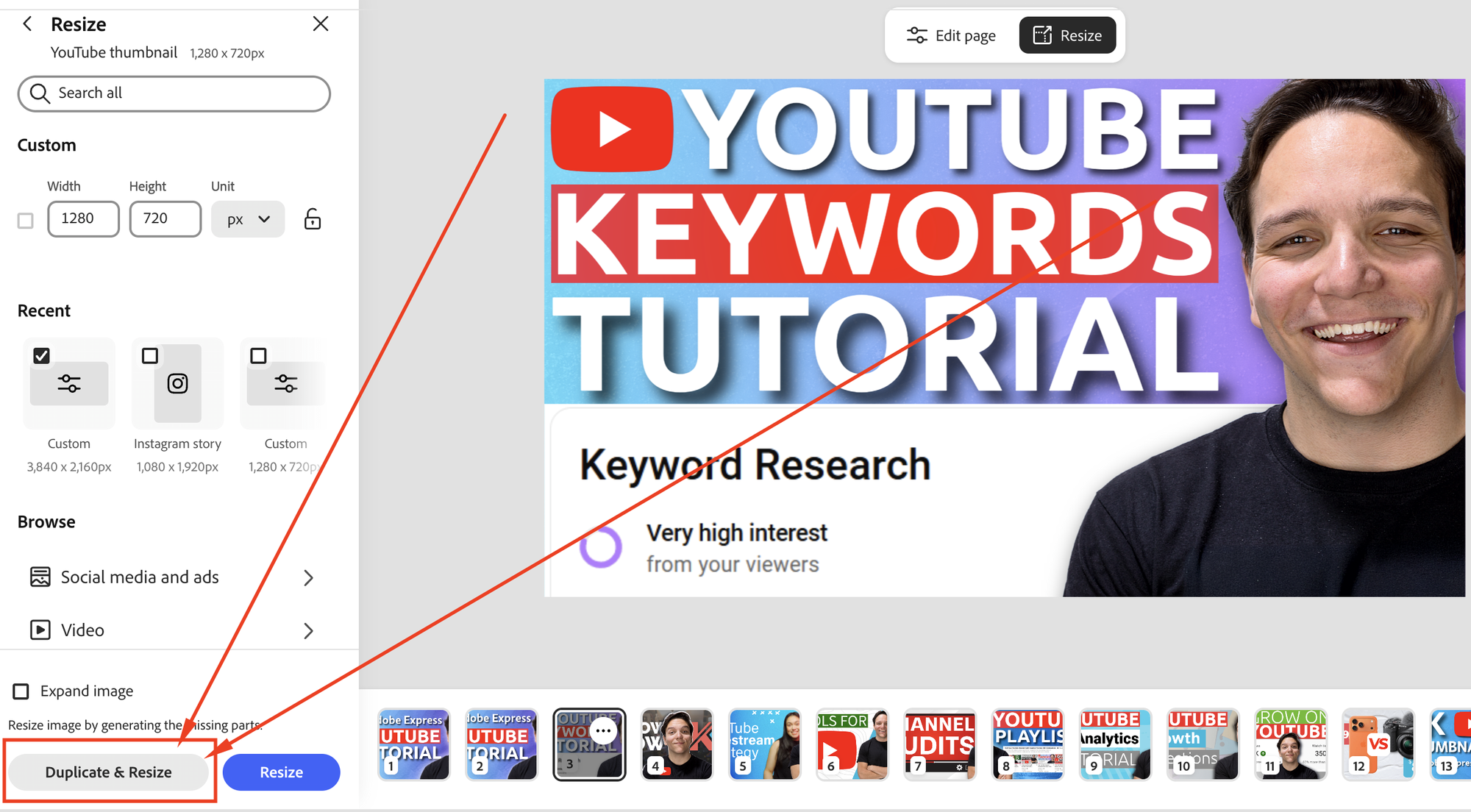
If you've built your thumbnail library in Adobe Express already, the resize workflow is just a few clicks. Open your existing thumbnail, go to File, click Resize, and select or enter the new 3840 x 2160 dimensions.
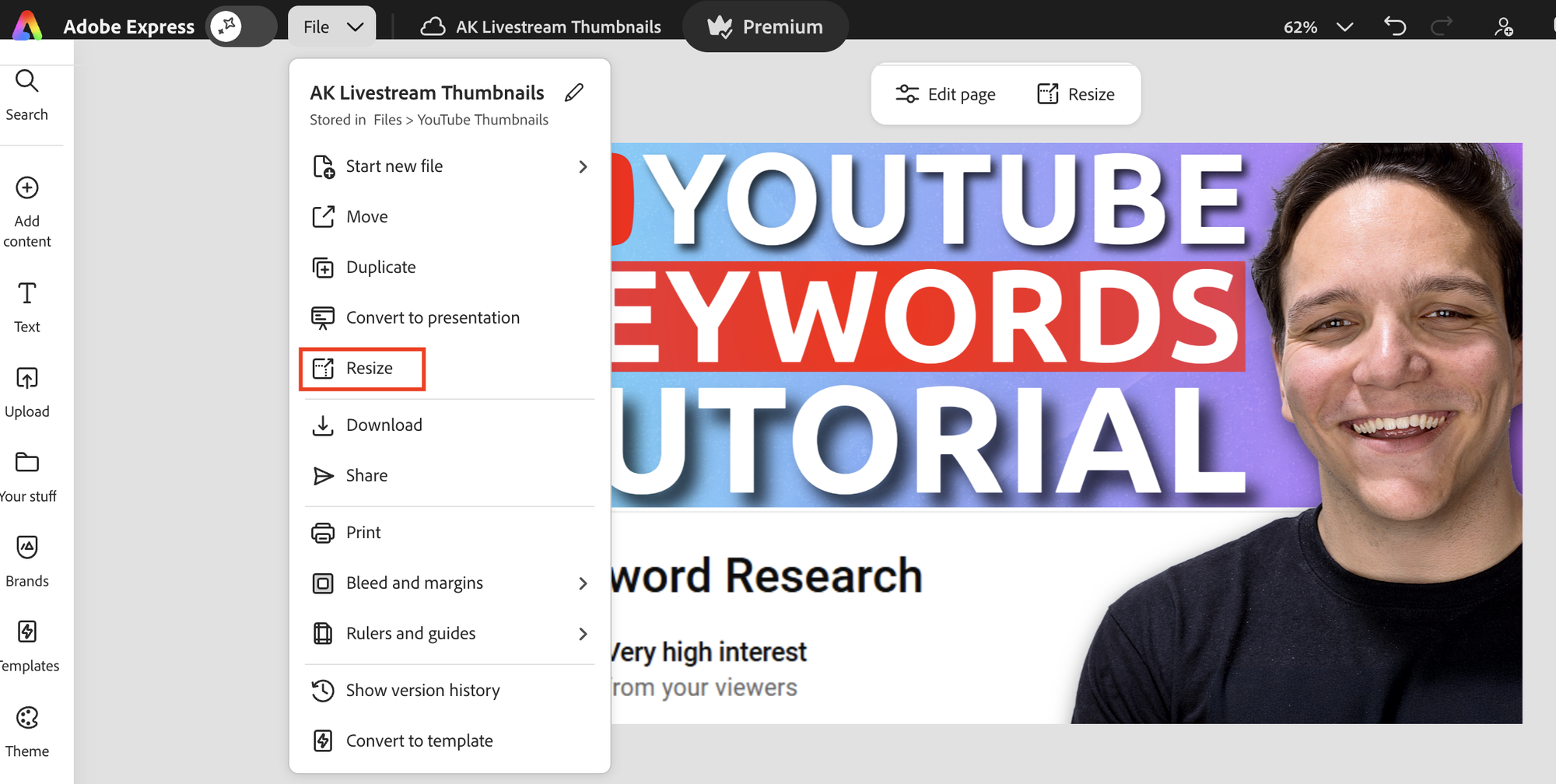
The key move here is to choose Duplicate and Resize rather than a straight resize, so you preserve your original 1280 x 720 version while building the new 4K version alongside it. Your design layers come across intact, and from there you can make minor adjustments, repositioning text and scaling elements, to take full advantage of the larger canvas.
If your thumbnails were built in Photoshop, Canva, or another tool, you can export those designs and bring them into Adobe Express to rebuild or refresh them. The process of going back through a thumbnail library is also a good opportunity to audit which videos are worth refreshing in the first place, since a new 4K thumbnail on an older video can trigger re-evaluation in YouTube's recommendation system.
For the full step-by-step walkthrough of exactly how I do this inside Adobe Express, including how I handle layers, brand colors, and design consistency across multiple thumbnails in a single file, watch the video above. I go through the complete process live, including mistakes and fixes in real time.
What Makes a YouTube Thumbnail Click-Worthy Without Being Clickbait?
This is one of the most important distinctions in all of YouTube strategy, and it's one worth pausing on before you touch a single pixel.
The purpose of a thumbnail is to get people to click through to watch your video. That's it. A thumbnail that gets clicks but misleads the viewer about what the video actually delivers is clickbait, and it's not just bad ethics, it actively harms your video's performance over time. YouTube tracks when viewers click and then quickly leave, and that signal works against your watch time and your placement in recommendations.
A click worthy thumbnail, on the other hand, creates genuine curiosity or desire while accurately representing what the video delivers. The line between the two is real, and it's worth thinking about every time you're designing. Audiences are smarter than many creators give them credit for, and a reputation for honest, compelling thumbnails compounds over time.
One practical tool for walking that line well: A/B testing. YouTube now allows creators to test multiple thumbnail versions against each other, and Adobe Express makes it easy to build multiple variations from the same design file. Building a strong B thumbnail doesn't have to mean starting from scratch, and it can mean a color change, a different crop, or a shifted text element.
What Are the Core Design Principles for 4K YouTube Thumbnails?
Whether you're designing from scratch or scaling up an old thumbnail, a few principles apply consistently across every type of content.
Readable text at every size. At 4K on a desktop monitor, your text will look crisp and large. Shrink that same thumbnail to mobile card size and everything changes. Design for the smallest display first, then enjoy the extra resolution as a bonus.
Foreground and background separation. Depth is what makes thumbnails feel professional rather than flat. Removing the background from your subject image, placing it over a contrasting backdrop, and using subtle drop shadows creates a layered look that draws the eye. Adobe Express has a one-click background removal tool that handles this fast, even on the free plan.
Complementary and contrasting colors. Your background color and your text color should work together, not fight each other. If you've set up a brand color palette inside Adobe Express, those swatches are always a click away and help you stay consistent across thumbnails. Gradients can add visual interest without introducing competing elements, but keep them subtle enough that they don't distract from the main subject.
Text placement that respects YouTube's interface. YouTube places the video timestamp in the bottom right corner of every thumbnail and playlist controls in other areas. Text and key visual elements in the lower quadrant of your thumbnail will often be partially obscured. Keep your most important content in the center and upper portions of the frame.
High quality source images. The benefit of designing at 4K disappears if your source images are low resolution. On desktop, Adobe Express supports files up to 50 MB. On mobile, the limit is 10 MB. Use the highest quality source images you can access, and use Adobe Express's sharpening and contrast adjustments to get the most out of them without making them look artificially processed.
How Does Adobe Express Support 4K Thumbnail Design?
Adobe Express is a browser-based and mobile design tool that's free to start and available across devices. For YouTube creators specifically, it's built with the workflows that matter most: resizing, layering, background removal, text effects, and template access, all in a single interface.
A few features worth highlighting for 4K thumbnail work specifically:
The multi-layer select feature (hold Control or Command to select multiple layers at once) makes it significantly faster to move, group, and adjust complex thumbnail layouts. This was a long-requested feature and it makes designing at 4K, where you're often working with more elements, much more manageable.
The Resize with Duplicate workflow I described above is built directly into the File menu and handles the 4K conversion in a few clicks without destroying your original design.
Adobe Fonts are integrated directly into the text tool, giving you access to a deep library of professional typefaces without leaving Express. Consistent, readable font choices are one of the fastest ways to elevate thumbnail quality.
The background removal tool is available on the free plan and works on both photos and videos. For thumbnails where you're placing a subject over a custom background, which covers most thumbnails, this is the workhorse feature.
If you want to try Adobe Express for free, you can get started here: Adobe Express
Can You Manage Multiple Thumbnail Variations in One Adobe Express File?
Yes, and this is one of the most underrated parts of the workflow. Inside Adobe Express, you can add multiple pages to a single project file, each at the same 3840 x 2160 size. I use this to house thumbnail A, thumbnail B, and any experimental variants for a single video, all in one place.
You can also copy elements across pages, paste branded assets from one thumbnail into another, and use the scheduler and social caption generator to plan how you'll promote the video once it's live. The workflow from thumbnail design to social promotion all lives inside the same tool.
For the full live demonstration of this multi-page workflow, including how I handle naming conventions, layer management, and the A/B design process, the video above is the place to go. I walk through several thumbnails across different content types, from educational breakdowns to gaming livestreams, and show how the same principles apply differently depending on your niche.
What Should You Do with Your Old Thumbnail Library?
The practical answer is: prioritize strategically. You don't need to rebuild every thumbnail you've ever uploaded. Start with your highest-performing videos, the ones driving the most traffic or sitting in important search positions, and rebuild those thumbnails at 4K first. These are the thumbnails viewers are most likely to see, so the return on that design time is highest.
From there, any new thumbnails you build going forward should be at 3840 x 2160 by default. The resize workflow in Adobe Express makes this easy enough that there's no reason to keep designing at the old standard.
If you have a backlog of thumbnails built in Adobe Express at 1280 x 720, the Duplicate and Resize path I described above is the fastest way to work through them batch by batch without losing your original designs.
Experiment with your thumbnails. Test variations. Study what gets clicks in your niche and build toward it consistently. The tools are here, and what matters is putting in the reps.
If you want to see everything I covered in this post in action, watch the full video above. There's a lot more in the live demonstration — including specific design moves for layered backgrounds, text effects, shadow techniques, and how I approach authentic thumbnails built from real-life photos — that goes well beyond what I can capture in text.
Ready to build your first 4K thumbnail? Try Adobe Express free today: Get Started with Adobe Express
If I Kan, You Kan Too.
Sponsored: This post was created in partnership with Adobe Express. It contains affiliate links. If you click and make a purchase, KDCC may earn a commission at no additional cost to you. Andrew Kan is an Adobe Express Ambassador. All opinions are his own.