The New YouTube Shorts Experience.

YouTube's main focus (as with many other platforms) is to keep you on their platform as long as possible. That's why they've been cleaning up their UI for a more streamlined viewing experience, starting with their video player for long-form content, and now for Shorts.
The Shorts experience is changing with less distraction and more control—whether that's having a clear layout so you can look at everything in the Shorts, or being able to double the playback speed, and many more.
Watch Shorts without the clutter.
The UI of Shorts takes up about 10% - 20% of the screen. If creators aren't mindful of that, then you might put something important that'll be overlayed by the UI. Viewers will then either not pay attention or be annoyed by the overlay.
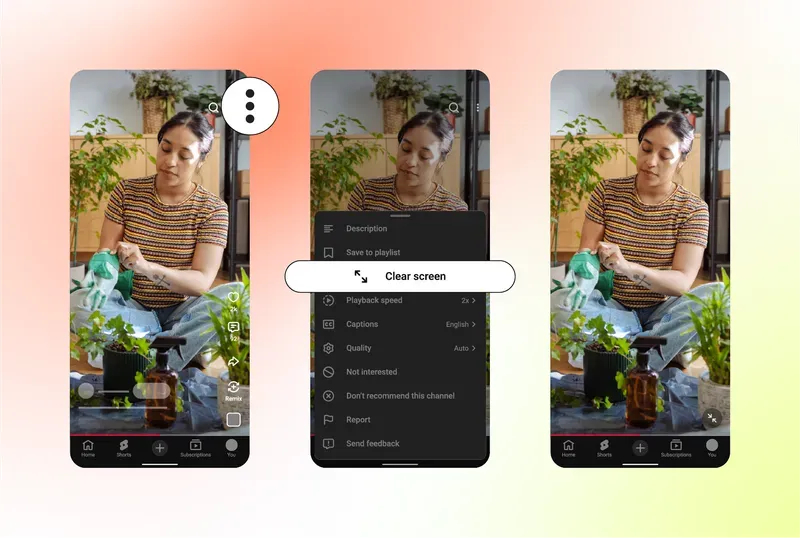
To solve this issue, YouTube introduces a Clear Screen mode where you can watch the Shorts without the overlay.
How to access Clear Screen mode.
When you're watching a YouTube Short on mobile, click on the three dot icon on the top right. A menu will pop up and you should see the option "Clear screen".
Tap on it and the overlays will be replaced with just a single button on the bottom right. If you tap on that, it'll make the default overlay reappear.
Likes and dislikes are no more on YouTube Shorts.
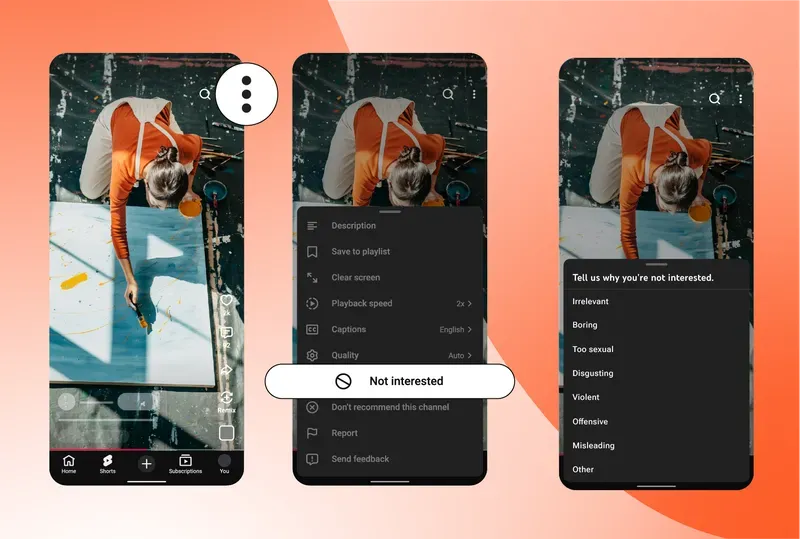
To help viewers curate their feed, YouTube's removing the like and dislike button in Shorts. In its replacement is the ability to heart a Short, and the options to say you're not interested or tell YouTube you don't want this channel recommended to you anymore.
YouTube says the heart icon "provides a more meaningful way to express when a video truly connects with you." We're not sure if viewers will understand the meaning, but what we do know is that it makes YouTube Shorts look a little bit more like Instagram Reels.
How to tell YouTube you don't like a Short.
Unfortunately, with the retirement of the dislike button on Shorts, you'll now need to go into the three-dot menu. If you're not sure where it is, it's on the top right corner.
Then you should see two options: "Not interested" and "Don't recommend this channel."
When you select "Not interested," you'll get another pop-up that asks why you're not interested. This will give YouTube a clearer indicator on why you don't want to see the Short.
If you select "Don't recommend this channel," YouTube will no longer show you the channel unless you decide to search them up and watch their videos again. Think of this like a block feature, but for channels.
Watch Shorts... even faster?
As the update roll out to everyone, you'll be able to watch Shorts at 2x speed. According to YouTube, this is the most requested feature from the Shorts community.
It's interesting when you think about the mindset of short-form content viewers. A lot of people thought (and studies have shown) that watching Shorts, TikToks, and even Vine back in the day, would shorten your attention span. It shows in how you need to capture the viewer within 3 seconds in Shorts, compared to 30 seconds in long-form content.
So the fact that watching Shorts at double speed is the most requested feature...
Shorts: the type of content that, at its maximum length, is 3 minutes.
However, TikTok has had this feature for a while now, so it feels like YouTube is playing catch-up.
How to watch Shorts at double time speed.
Speeding up Shorts on mobile works the same with long-form content. Just press and hold, and it'll speed up.
You can also hold and pull down to lock the Shorts at 2x speed.
Source: https://blog.youtube/news-and-events/youtube-shorts-experience-updates-features/