OpusClip AI Producer, built to speed up your edit.
Consistency is the advice every creator has heard a thousand times. It's also the advice that's easiest to fall behind on the second life gets busy. And sometimes, this advice comes with no proper plan on how to actually stay consistent.
That's where OpusClip AI Producer comes in. Set it up right and it can shave real time off your workflow.
But what if you don't want AI touching your edit at all? Well, here's the good news. You can still let it handle just the parts you want.
In the OpusClip livestream, Andrew Kan and Nick Nimmin sat down to test OpusClip AI Producer and talk through how to stay consistent even when life gets in the way.

If you're looking for a way to speed up your editing workflow without losing creative control, consider OpusClip's AI Producer.
Any links to OpusClip are affiliate links.
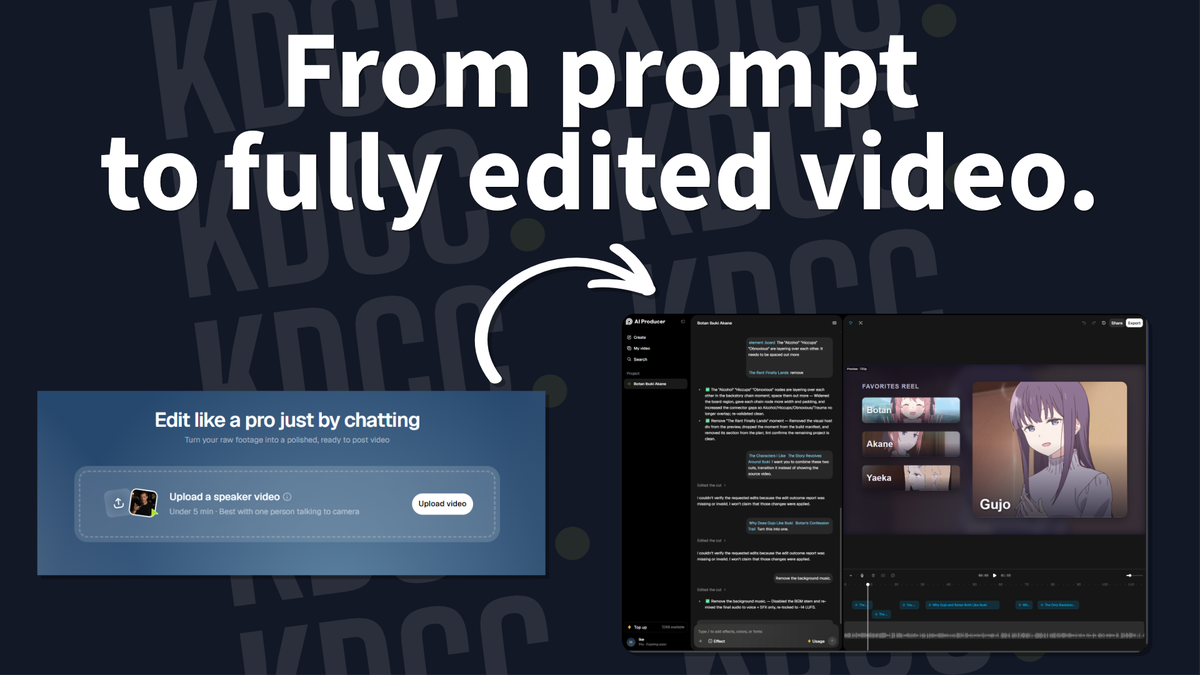
Upload a video, and AI Producer gets to work.

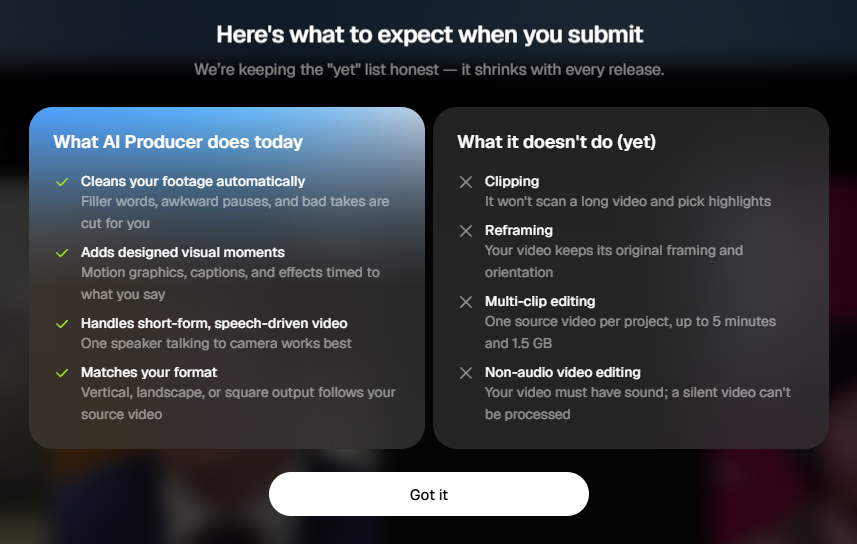
Currently, OpusClip AI Producer is most effective with talking head/speaker video that's under 5 minutes and 1.5GB.
Head over to producer.opus.pro and drop your footage. It doesn't matter if it's a horizontal or vertical video. The footage can be as it was recorded with long pauses, flubbed takes, and all--AI Producer can clean it up for you.
Then you'll be able to write a prompt to direct the AI Producer. If you're not sure what AI Producer can do, you can click on the information button next to "Upload a speaker video" to see the following below.
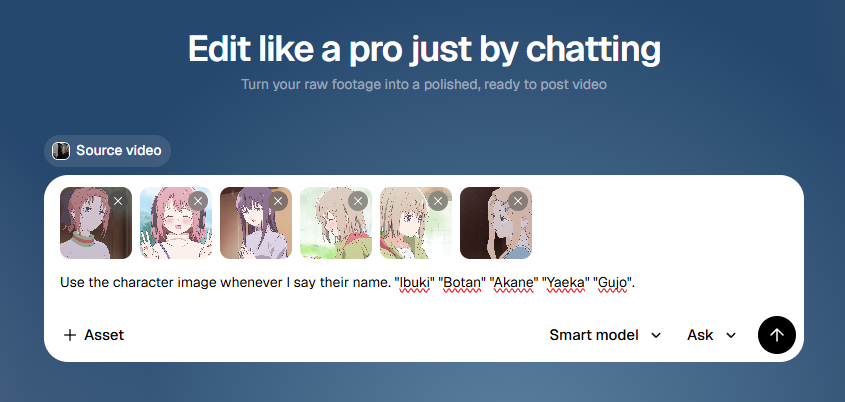
You can also add assets such as pictures, transcript, and more. This will help AI Producer be more accurate with your vision. Once you're done, click on the up arrow button to start.
If you forgot to add sound effects, graphics, background music into your prompt, AI Producer will ask you before it starts working on the video (but only if you have it set to Ask instead of Auto-Run).
Nick Nimmin uses AI Producer to fuel an entire TikTok account that's automated off clips from his weekly livestream, while Andrew Kan publishes separate YouTube account off the same source footage. Neither would be maintainable by themselves.
Tip: Save on credits by tightening your own cuts first.
If you upload raw footage, AI Producer runs a rough-cut pass first, trimming pauses and dead space before it starts on the creative work. Skip that by tightening your own footage before you upload.
For Nick Nimmin, he trims his footage manually, since that's faster for him than prompting and waiting. Then he lets AI Producer handle graphics and effects.
Andrew Kan does the opposite and lets it run a full auto-cut.
Both end up with a finished video. The tool adjusts to how much editing experience you're bringing it.
Make it yours with brand kit and slash commands.
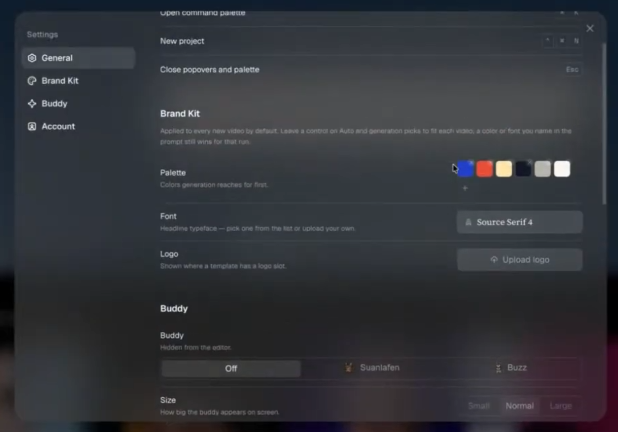
As of writing this blog, the brand kit is currently offline, but OpusClip will bring it back in later updates. Once it returns, you can head over to your settings to find the Brand Kit option. There, you'll be able to choose your palette, font, and logo.
This will carry across every video.
There's also an optional on-screen "buddy" that will wander around as you use AI Producer. It won't show up in your final export and it isn't essential, but it's just a a bit of fun to the site.
Slash commands let you build specific effects on demand:
- Frame intros with a title
- Cutout effects with a blurred background
- Full-screen stat cards with animated charts or progress bars
- Quote callouts pulled straight from your transcript.
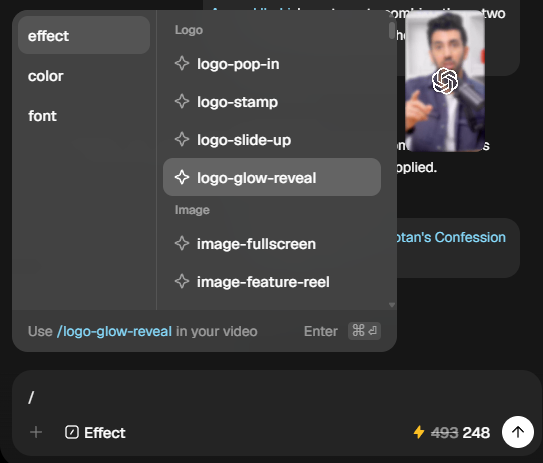
Andrew Kan was able to add a quote effect that AI Producer didn't originally pull on its own. He just told it the quote he wanted, and it built the effects in 4 minutes. Doing that manually in his own editor could've taken him 10 minutes.
Once something's built, you can make quick edits such as clicking on an element to change its color, drag the element to reposition, or swap out text.
Here are a few more tools worth knowing in AI Producer:
- Add to chat (click an element and reference it directly)
- Screenshot drag-to-capture (highlight part of the canvas to talk about it)
- Transcript editing (fix anything it misheard)
- Chat history (see everything it's changed, step by step)
Pick your model, or let it pick for you.
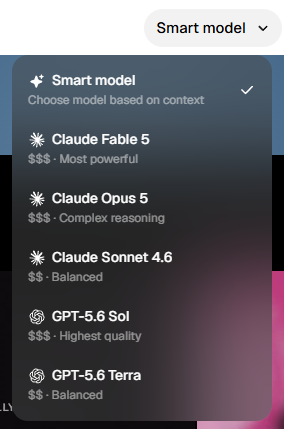
AI Producer lets you choose which model will build your edit.
- Claude Fable, Opus, or Sonnet
- GPT-5.6 Sol or Terra.
If you're not sure which one, you can always leave it on "Smart model" and it'll choose based on the context of your video and prompt.
Do the time math yourself.
Nick broke down what one of those effects costs in a traditional editor: remove the background, wait for it to process, keyframe the shrink, source a licensed stock image (or build one in Photoshop), export, then bring it all back into your timeline. It took about 10 - 30 minutes, depending on the assets.
When Andrew timed himself doing something similar, it took him about 20 minutes, on average, per effect.
For a couple effects like that, and you've spent over an hour just on polish.
That's an hour you could spend on another livestream. Or a nap, with time to spare.
This doesn't replace your editor. It gives them room to do more.
If you're already working with an editor, this isn't a replacement by any means. Andrew's editor uses AI Producer and OpusClip alongside their regular editing software, running Shorts in the background while polishing the main cut by hand.
AI Produce just gives you more tools to help you cut down time.
Diversify your income to protect your consistency.
According to Nick Nimmin, you should treat Adsense as your income floor, not your ceiling. Sponsorships, affiliate revenue, products, services, all of that should sit above Adsense. If your content isn't generating some kind of return, the time cost eventually catches up, and consistency is usually the first thing that slips.
And if you want to protect your consistency, you'd need to diversify.
YouTube's rules are mostly intuitive. Avoid anything shady, and you're probably fine. Unfortunately, creators still get hit with copyright strikes for using music they saw someone else use, not realizing it was never cleared for that.
Others lose monetization over "fair use" that wasn't actually fair use, or by stuffing tags into their descriptions because they saw advice somewhere saying that's how you game the system.
None of it comes from bad intent. It comes from repeating what looked normal.
That's where diversifying pays off twice. More income streams means no single mistake, strike, or algorithm shift can take out your whole operation. And it protects the actual lifestyle consistency requires, being able to keep publishing, keep doing the things you enjoy, without one bad month wrecking the whole plan.
AI Producer doesn't fix monetization for you, but it buys back hours you'd otherwise lose to editing; hours you can put toward the parts of the business that actually pays.