OpusClip Full Tutorial: How to Grow Your YouTube Channel with AI Video Clipping
OpusClip is an AI-powered video clipping platform that turns long-form YouTube content into short-form clips, captions, and chapters. Andrew Kan from KDCC walks through the entire platform with real-world examples and tips for growing your YouTube channel.

OpusClip is an AI powered video clipping, captioning, and editing platform that transforms long form videos, podcasts, livestreams, content, etc. into short form clips optimized for YouTube Shorts, TikTok, Instagram Reels, and other social platforms. It supports over 20 languages, imports video from sources including YouTube, Google Drive, Vimeo, Zoom, Twitch, and more, and includes features like automated captions, virality scoring, custom brand templates, and AI-enhanced audio processing. For YouTube creators looking to repurpose livestreams, podcasts, and long-form uploads into scroll-stopping shorts, OpusClip is one of the most capable tools available right now.
Before I go any further, I want to be upfront: OpusClip is a sponsor of the Kan Do Creators Community (KDCC), and some links in this post are affiliate links. These opinions are entirely my own, and I only recommend tools I personally use and believe in. If you sign up through my links, I may earn a commission at no extra cost to you.
I am Andrew Kan, co-founder of the Kan Do Creators Community (KDCC) alongside Ike, and OpusClip has earned a permanent place in my creator workflow because of how much time it saves and how many views it has helped me generate. If you want the full backstory on my 13+ years on YouTube and how KDCC came to be, that is all there. For this post, I went live on my YouTube channel and walked through the entire OpusClip platform, including real-world editing, clipping, captioning, and chapter creation, and this blog covers the key takeaways from that session so you can start using OpusClip to grow your own channel.
👉 Try OpusClip free here (affiliate link) to follow along with everything covered in this post.
What Is OpusClip and Why Should YouTube Creators Care?
OpusClip is a powerful AI video clipping tool, and after using it extensively across my own content, I can tell you it lives up to that reputation for most creators. At its core, OpusClip takes a single long-form video and generates multiple short-form clips from it using AI analysis of your visuals, audio, and trending topics. You paste in a YouTube link (or upload a file directly), select your preferences, and the platform does the heavy lifting of finding clip-worthy moments, applying captions, reframing for vertical formats, and even scoring each clip's viral potential.
The reason this matters for YouTube creators specifically is that short form content is no longer optional if you want to maximize your reach. I went from averaging about 30,000 to 40,000 views per month to consistently hitting 50,000 to 80,000 views per month, and the primary change I made was strategically repurposing my long-form content into YouTube Shorts using OpusClip. That is nearly double the viewership from content that already existed, and it did not require me to sit down and manually edit hours of footage.
How Do OpusClip Credits Work?
One of the most common questions I get from creators trying OpusClip for the first time is about the credit system. The way it works is straightforward: roughly one minute of video processing equals one credit. So if you have a 60-minute livestream, that is approximately 60 credits to process.
OpusClip offers a free tier that refreshes monthly, giving you enough credits to test the tool and see results. New users also receive a 7-day free trial of the Pro plan, which includes expanded credits and access to advanced features like team collaboration, custom brand templates, and the ClipAnything model, which is their smartest AI for identifying clip-worthy moments across any type of video content. If you are processing a lot of long-form content regularly, the Pro plan is where you will get the most value, especially when you factor in the time savings compared to manual editing.
👉 Start your free OpusClip trial (affiliate link) to see how credits work with your own content.
Can I Upload My Own Video or Do I Have to Use a YouTube Link?
This is a question I hear constantly, and the answer is yes, you can absolutely upload your own video files directly into OpusClip. You are not limited to YouTube links. OpusClip supports imports from YouTube, Google Drive, Vimeo, Zoom, Rumble, Twitch, Facebook, LinkedIn, Twitter, Loom, Riverside, StreamYard, and more. You can also upload raw video files up to 30 GB and up to about 10 hours in duration, which covers virtually any piece of content a YouTube creator would produce.
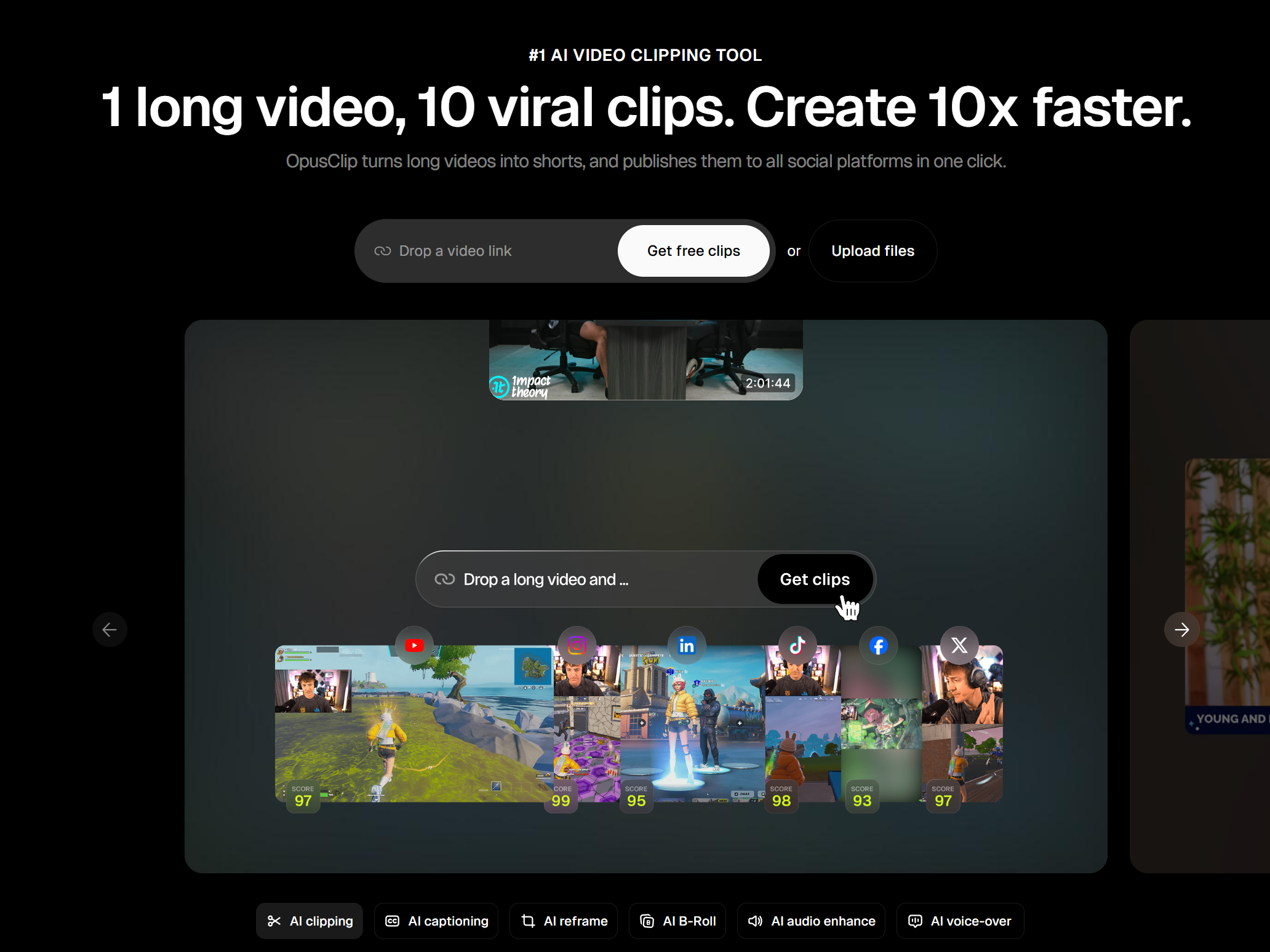
This flexibility is important because it means you can use OpusClip for content that is not yet published anywhere. If you just finished recording a video and you want to create shorts from it before the long-form version even goes live, you can upload the file and start clipping immediately. I regularly do this with both my livestream recordings and net new uploads, and it has been a game changer for keeping my content pipeline full.
How Do I Choose the Right Clipping Model and Settings?
When you load a video into OpusClip, you will see several options for how the AI processes your content. For Pro users, I recommend using ClipAnything, which is their most advanced model and works across virtually every type of video, from talking head content to screen shares to entertainment-focused videos. The free plan gives you access to the basic model, which is still solid for getting started.
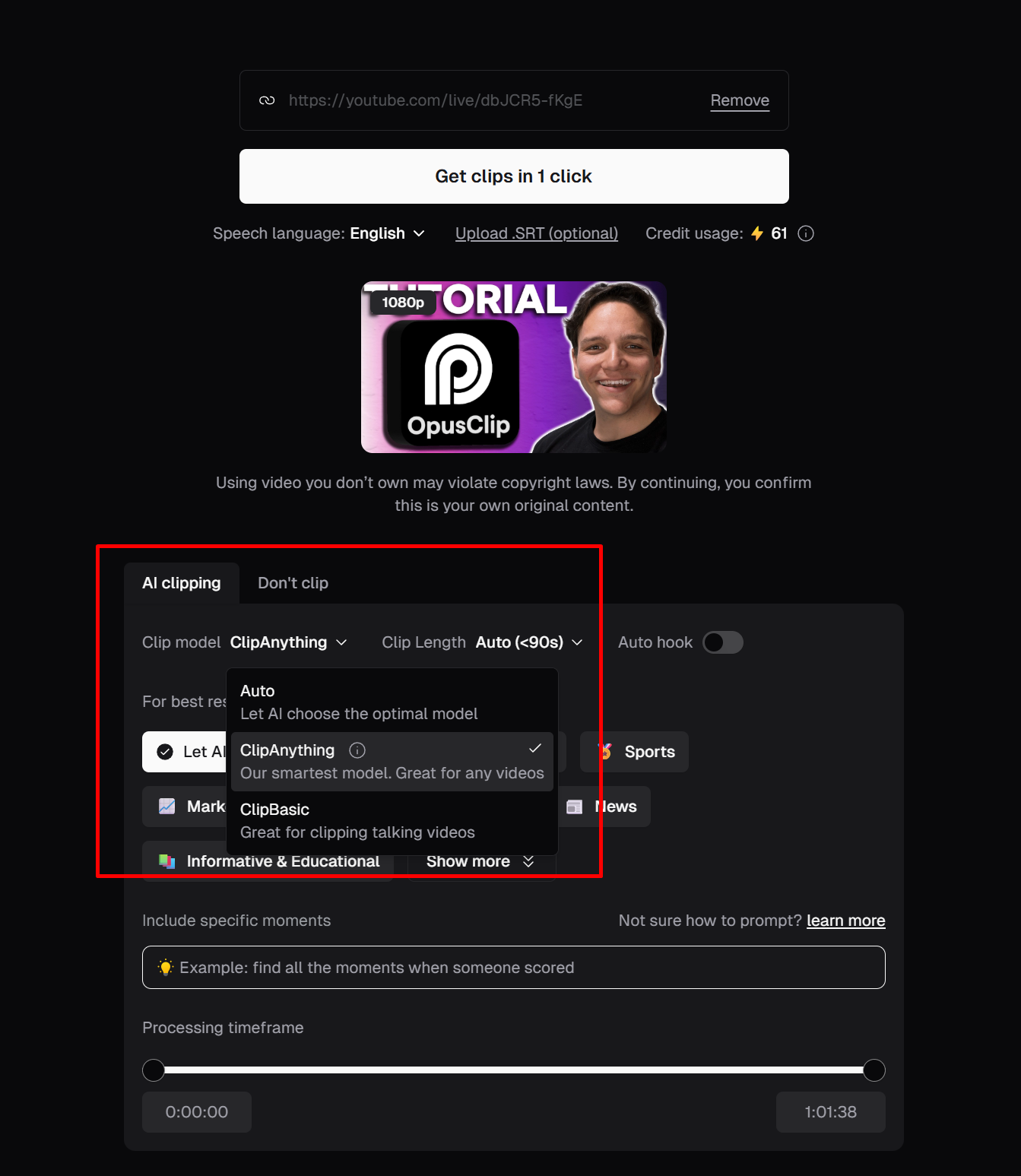
Beyond the clipping model, you can also select the length range for your clips. I typically select multiple ranges (30 to 59 seconds, 60 to 89 seconds, and 90 seconds to 3 minutes) to give myself options for different platforms and audience preferences. OpusClip also lets you choose content type tags like education, entertainment, commentary, or marketing webinar, and you can fine-tune these by deselecting categories that do not apply to your specific video.
One of the more powerful features is the prompting capability. You can type in a specific instruction like "find all the moments I talk about thumbnails, titles, and click-through rate" and OpusClip will prioritize those moments when generating clips. The more specific and descriptive your prompt, the better the results will be. I will be honest, prompting is a skill that takes practice, and getting better at it is one of the highest-leverage things you can do to improve your Opus Clip output.
What Is the OpusClip Virality Score and How Should I Use It?
Every clip that OpusClip generates comes with a virality score, which is a data-driven estimate of how likely that clip is to perform well on social media. The score breaks down into several components including hook strength (how attention-grabbing the opening is), flow (how logically the content progresses), value (how useful or entertaining the content is), and trend alignment (how well it matches current topics and formats that are performing on social platforms).
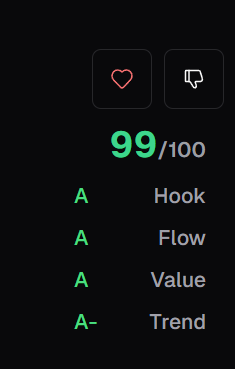
Here is my top tip for newer creators: use the virality score as a learning tool, not just a selection tool. Study why certain clips score higher than others. Pay attention to what makes a strong hook versus a weak one. I have had livestreams where I felt like I was not performing well, and OpusClip gave me a low score that confirmed it. Other times I thought I was just okay, but the virality score was high, and the audience response matched that higher score. Over time, studying these breakdowns will make you a better on-camera communicator, which compounds across everything you create.
Can OpusClip Hurt My YouTube Channel?
This came up during the livestream, and it is a fair concern. Clipping can hurt your channel if it is handled carelessly. The main risks include publishing clips that are not relevant to the audience you are building, clipping moments that do not make sense outside the context of the full video, and pushing short-form content to an audience that has never been exposed to it from you before.
Before you start clipping, check your YouTube Analytics. Does your audience already watch YouTube Shorts? If yes, repurposing is a natural fit, and if not, you need to warm up your audience to the idea first. Think of it like how McDonald's spent decades building trust in their core menu before introducing breakfast. If you just start dropping shorts or clips with no context and no communication to your audience about what you are doing, it can feel jarring and disconnected from what they originally subscribed for.
For my channel, I started with a combination of net new shorts (content made specifically for short-form) and repurposed clips from livestreams and videos. That blend helped my audience adjust to seeing short content from me, and once that foundation was set, the repurposed clips started driving significant additional viewership.
How Can I Use OpusClip for YouTube Captions and Chapters?
This is one of my favorite use cases for OpusClip, and honestly, it is a bit of a secret weapon that I use for every single one of my livestreams at KDCC. Even if you do not want to clip a video, you can still get enormous value from OpusClip by using it to generate transcripts, SRT caption files, and the raw material for YouTube chapters.
Here is how the process works at a high level: you import your video into OpusClip and select "Don't Clip" if you do not need short-form clips from it. OpusClip will still process the audio and generate a full transcript, which you can download as either an SRT file (a caption file format that YouTube accepts directly) or a plain text file. The SRT file can be uploaded straight into YouTube Studio's subtitle system, where YouTube will automatically match the timings for you. The text file can be pasted into a chatbot like Claude or Gemini with a prompt asking it to generate SEO-optimized chapters based on the transcript and total runtime.
I used to spend hours rewatching content to create chapters and clean up auto-generated captions. Now the entire process takes a few minutes, and the results are impressively accurate. This alone makes OpusClip worth it for creators who do livestreams, long-form tutorials, or any content over 15 or 20 minutes, because chapters and captions make your videos more accessible, more searchable, and more likely to retain viewers who prefer reading along or jumping to specific sections.
👉 Get your free OpusClip trial (affiliate link) and try the caption and chapter workflow with your next video.
What Is the OpusClip Auto-Import Feature?
Auto-import is one of those features that quietly saves you a surprising amount of time once you set it up. OpusClip lets you connect your YouTube channel and configure it to automatically import new videos, either from your entire channel or from a specific playlist. Once a video is published and processed, OpusClip will notify you by email that it is ready to be clipped.
I have my livestreams playlist set to auto-import into OpusClip, which means every time I finish a live session, the recording automatically shows up in my Opus Clip dashboard ready for me to review and clip. I do not have to remember to paste in a link or manually upload a file. This small automation has been one of the key reasons I have been able to consistently repurpose content without it feeling like extra work, and it is a big part of how I nearly doubled my monthly viewership.
How Does the OpusClip Editor Handle Cropping and Reframing?
The built-in editor is where you fine-tune clips after the AI generates them. One of the most common adjustments creators need to make is cropping, especially when the original video includes screen shares, overlays, or other visual elements that do not translate perfectly to a vertical 9:16 format.
OpusClip gives you several crop options including 9:16, 1:1, 16:9, and 4:3, and you can apply crop settings to individual scenes or to all selected scenes at once. My co-founder Ike actually put me on to using 1:1 (square) format, which can work beautifully depending on the content and the platform you are targeting. You can also adjust the layout mode between "fill" (which zooms in to fill the frame) and "fit" (which shows the full frame with blurred background bars), and each gives you a different feel for the final output.
For screen share content specifically, I find that a little manual adjustment goes a long way. The AI does a solid job of identifying where to focus, but because text-heavy screen recordings can be tricky, spending a couple of minutes adjusting the crop on key scenes can take a clip from unusable to polished. It is doing a lot of the work for you already, and I do not mind making those fine adjustments because I know how much harder it would be without the tool handling the initial pass.
What Other Editing Features Does OpusClip Offer?
Beyond cropping and reframing, OpusClip includes a solid set of editing tools that let you customize clips without needing separate software. You can remove filler words (like "um" and "uh") with the AI Enhance feature, which also lets you control pause duration so you can eliminate dead air or keep natural pauses depending on your style. There is a speech enhancement option that improves vocal clarity, which has genuinely saved some of my clips where the audio was not as clean as I would have liked during recording.
Caption customization is another area where OpusClip shines. You can change fonts (including uploading your own custom fonts), adjust colors, select animation styles like underline or earthquake effects, reposition captions on screen, and highlight specific words for emphasis. You can also change which words get highlighted, so if the AI emphasized the wrong word, you can click on it and swap the highlight to the word that actually matters in that sentence.
For branding, the template system lets you create custom looks with your logo, background images, specific font styles, and color schemes. I have multiple templates saved for different purposes, including our KDCC template and templates for specific types of content. You do not have to use the defaults, and I encourage every creator to build at least one custom template that matches their brand identity so every clip that goes out looks cohesive and intentional.
What Is Agent Opus?
OpusClip also launched a newer feature called Agent Opus, which goes beyond clipping existing content. Agent Opus is an AI video generation tool that can create original videos from text prompts, article links, trending news URLs, or your own scripts. It assembles a virtual creative team that handles scripting, narration (including voice cloning from a 30-second sample of your voice), asset sourcing from across the web, motion graphics, and final video assembly.
During a separate livestream I did with the OpusClip team featuring Connor, Ada, Rebecca, and others from the community, we explored Agent Opus in depth. It represents a different side of what OpusClip can do, and while it is still evolving, the potential for creators who want to produce content at scale is significant. If you are curious about Agent Opus, the full replay of that session is linked in our community resources, and I will continue covering updates to the feature as it develops.
How Can Creators with Member-Only Content Use OpusClip?
Another great question that came up during the livestream was whether OpusClip works with private or members only content. The answer is yes, with a small caveat. If your content is behind a YouTube membership paywall or similar restriction, OpusClip may not be able to pull it directly via a YouTube link. However, if you have the original recording file (for example, if you record through StreamYard, Riverside, or similar platforms), you can simply upload that file directly into OpusClip and process it like any other video.
I actually use this exact workflow for our Kan Do Creators Community membership calls. I process the recordings through OpusClip to generate SRT files and transcripts, which I then use to add captions and chapters to make the content more accessible for our members. It is a behind-the-scenes workflow that most people would never guess, but it dramatically improves the quality and usability of private content for the people who are paying for it.
What Is My Best Advice for Getting Started with OpusClip?
If you are a YouTube creator who produces any kind of long-form content, whether that is livestreams, tutorials, interviews, vlogs, or anything in between, OpusClip deserves a serious test drive. Start with the free trial, import one of your existing videos, and pay attention to what the AI finds. Study the virality scores, experiment with the prompting feature, and try the caption and chapter workflow even if clipping is not your priority right now.
The biggest unlock for most creators is not the technology itself, it is the mindset shift of realizing that every piece of long-form content you have already created is a library of untapped short-form potential. Your audience has probably already told you (through your YouTube Analytics) which moments resonated most. Find those moments, clip them, refine them, and let them drive new viewers back to your full-length content. That is the cycle that nearly doubled my monthly views, and it can do the same for you.
👉 Start your free OpusClip trial here (affiliate link) and see what your content can become.
🎬 Watch the full OpusClip livestream tutorial where I walk through everything covered in this post, including live editing, real-world clipping examples, and community Q&A.
And if you are looking for more YouTube growth strategies, creator tools, and a community that actually supports each other, come join us at KDCC. We have a free Discord, memberships, a YouTube Glossary and Creator Dictionary with over 175 terms, and a whole lot more. Whatever stage you are at on your YouTube journey, we are here to help.
If I Kan, You Kan Too.
Full Disclosure: OpusClip is a sponsor of the Kan Do Creators Community (KDCC), and some links in this post are affiliate links. I only recommend tools I personally use. If you sign up through my link, I may earn a commission at no extra cost to you.