How To Edit Quicker With The Elgato Stream Deck
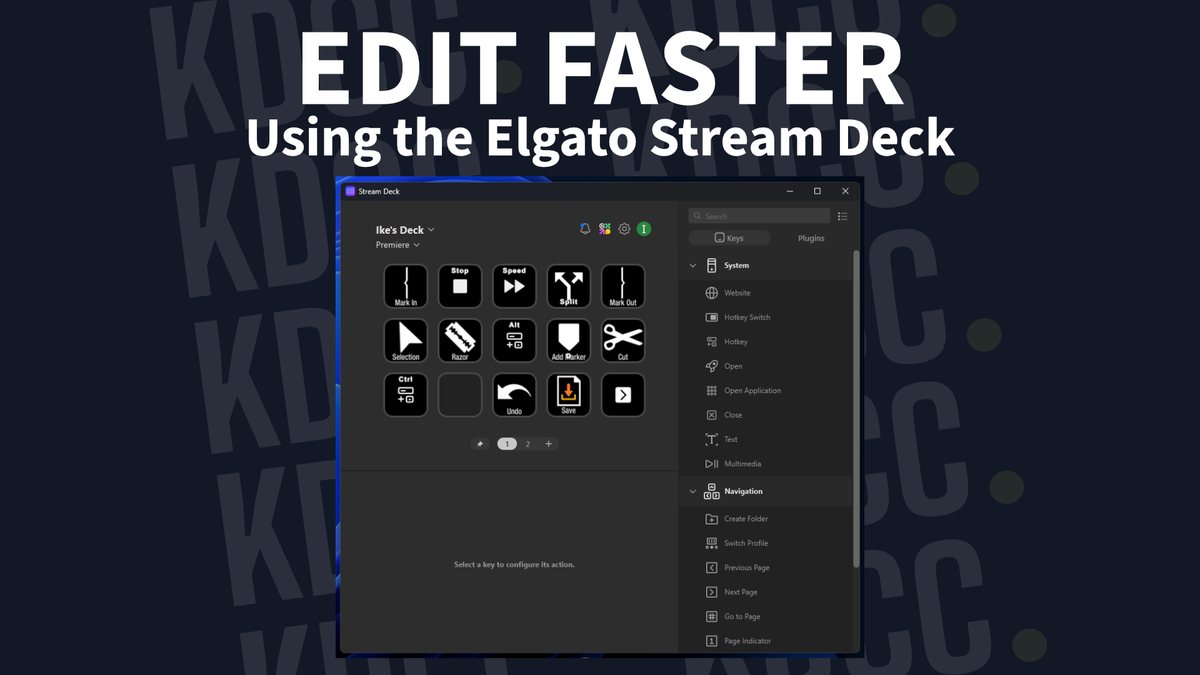
Whether you're a viewer or a creator, you've heard or seen the Elgato Stream Deck at work. It's a streamer's best friend with its customizable macro keys that basically lets you do almost anything as long as you know how.
Turns out it works just as well for editors. Set it up right, and you'll cut your editing time down fast.
But what if you don't have a Stream Deck or can't afford one? No problem. Keyboard shortcuts will get you most of the way there.
If you're looking for a way to speed up your editing workflow with one-tap hotkeys, consider the Elgato Stream Deck. Any links to Elgato are affiliate links.
Cut down your editing time with keyboard shortcuts.
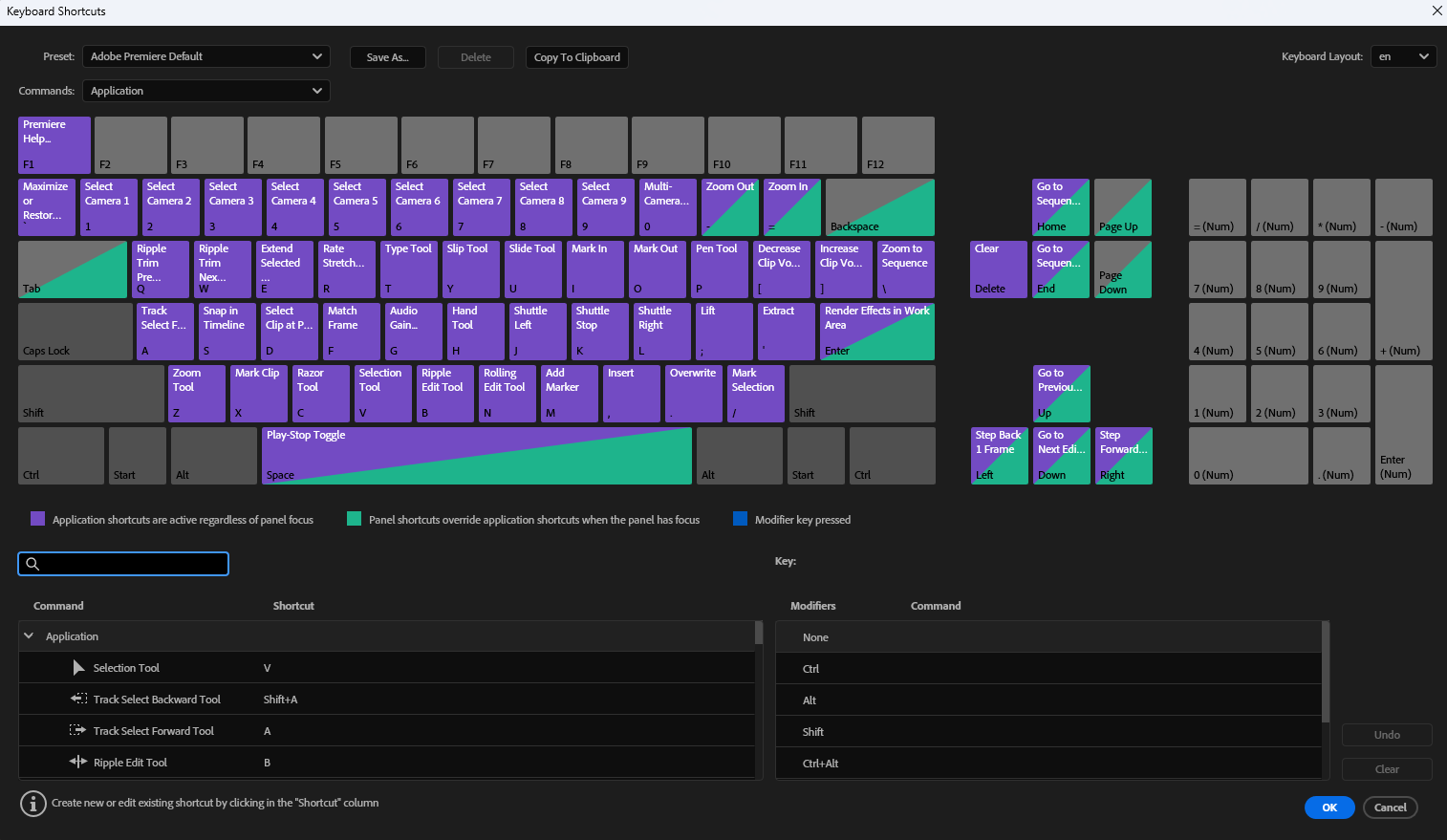
Every single editor (on desktop) has keyboard shortcuts.
It could be called "Keyboard Shortcuts" or "Customize Your Keyboard" depending on what editor you're using. Here, you'll find shortcuts for just about every tools and commands.
If you don't have a Stream Deck, look up the command or tool you use the most and find its shortcut (if it has one). You can either use the shortcut given to you, or change it to match your need.
Find which keys work for you, where your hand reaches and where you can remember what each key does.
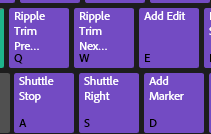
In case you're not sure where to start, try out the following shortcuts and placement. Note: These shortcuts and commands will be different based on your editor.
- Q & W = Ripple Trim
- E = Add Edit (places a cut in your track(s))
- A = Shuttle Stop (stops the playback)
- S = Shuttle Right (starts the playback + goes up by .5 speed)
- D = Add Marker
Play around with this initial setup, or make your own. The more you get used to the shortcuts, the faster you'll edit.
How the Stream Deck streamline this to the max.
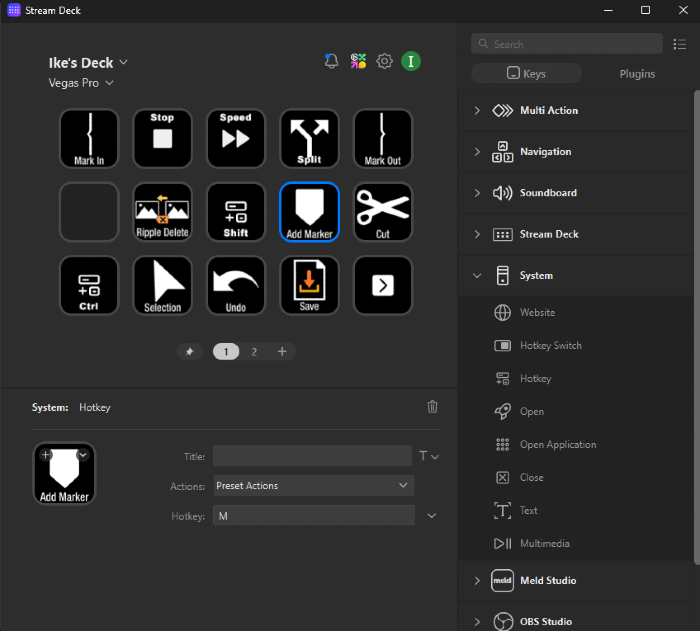
With the Stream Deck, you can turn the keyboard shortcuts into Hotkeys. You can find this under the Systems catalogue.
Click and drag the Hotkey into one of the empty slots, and add in the key according to your editor's keyboard shortcut. Then you can type down a title and/or add an icon.
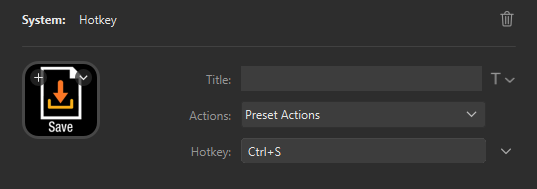
This is where you can get creative and make the Stream Deck yours.
https://marketplace.elgato.com/stream-deck/icons
Grab some icons relating to editing (and even icons from your editor) from the Elgato Marketplace. Then put down your Hotkeys, use it a bit, and change it around to suit your needs.
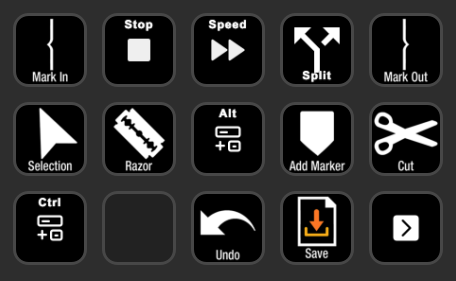
Again, if you're not sure where to start, check out this layout I have for Adobe Premiere. The shortcuts I have for the keyboard is here on the Stream Deck, just arranged differently.
Keep in mind these tools/commands:
- Ripple Trim (Trim the front or end of a track and then ripple delete to push the track(s) together)
- Add Edit (places a cut in your track(s))
- Shuttle Stop (stops the playback)
- Shuttle Right (starts the playback + goes up by .5 speed)
- Add Marker
- Selection Tool
- Razor Tool
If you run out of space, you can create a new page. The Elgato Stream Deck will create a "Next Page" and "Previous Page" key for you. However, if you're looking for more options to navigate, it'll be in the Navigation category.
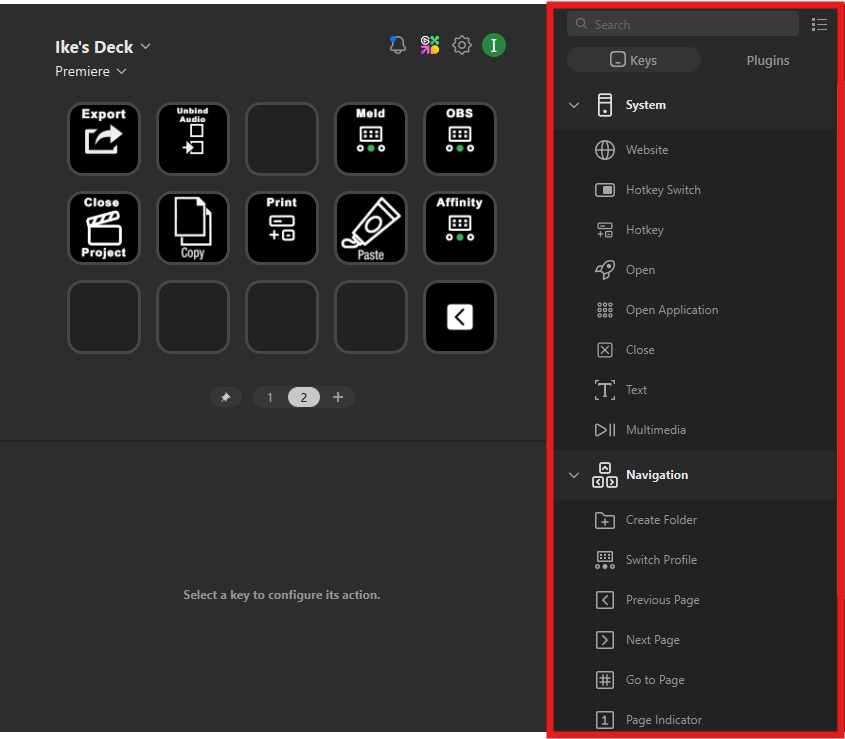
Traveling? Export your profiles so you can take the Elgato Stream Deck on the go!
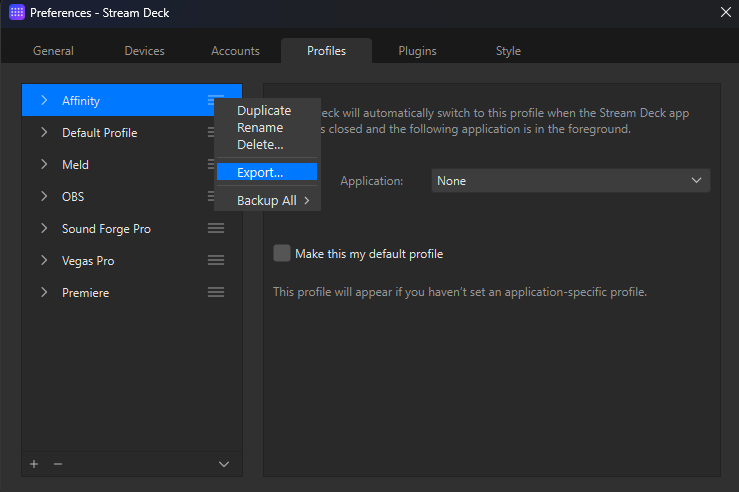
Once you've built a deck catered to you, click on the cogwheel icon next to your profile. Head over to the Profiles tab. Right click on the profile, and you should see the option to export.
Export it to a USB or a cloud drive so that you'll always have it.