How to Create YouTube Playlists That Get More Views
Playlists are one of YouTube's most underrated features. Here's how to create, optimize, and use them to earn more views and watch time.

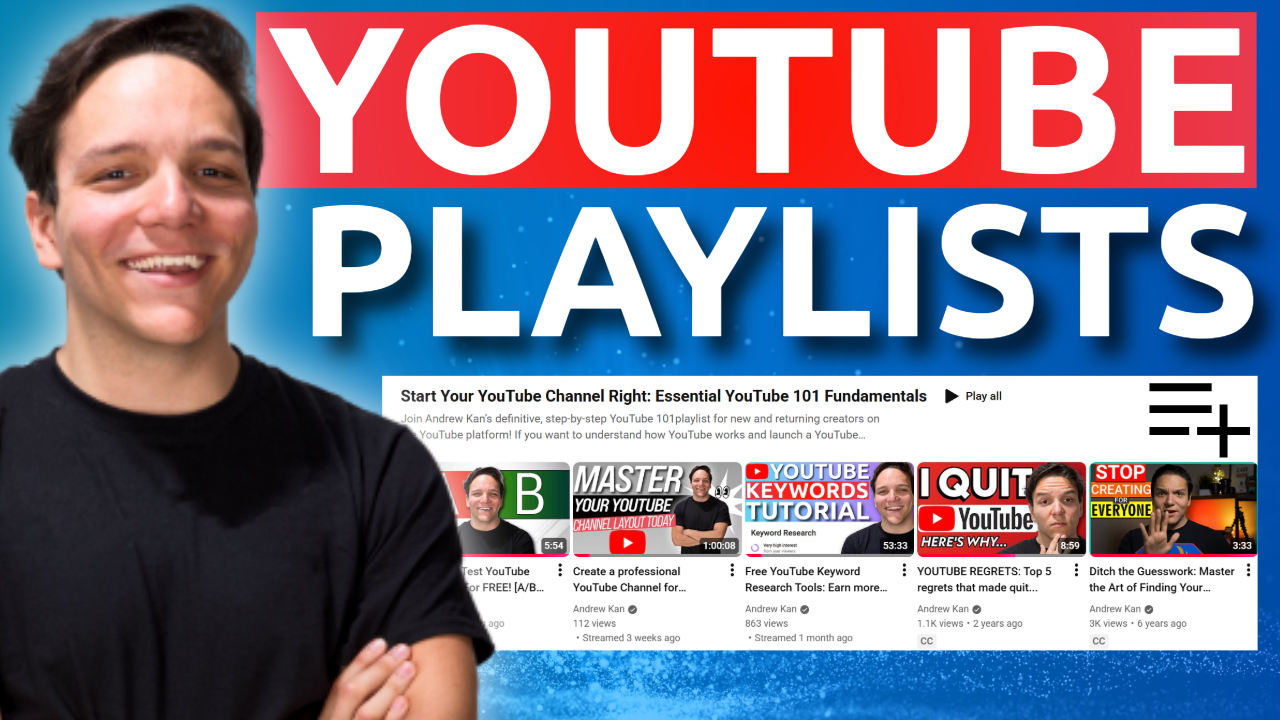
A Step by step guide to setting up, optimizing, and using YouTube playlists to grow your YouTube channel.
YouTube Playlists are one of the most underrated features on YouTube. Most creators either ignore them completely or throw videos into a folder without any thought.
That's leaving views on the table.
One playlist I re-optimized earned me 1,500 extra views in 90 days. No new videos. No promotion. Just a more audience focused playlist setup.
This guide walks you through exactly how to create playlists, optimize them for search, and use your analytics to find playlist ideas you might be missing.
How to Create a YouTube Playlist
There are a few ways to do this, but the best method is through YouTube Studio on desktop.
- Go to YouTube Studio
- Click Create in the top right corner
- Select New Playlist
- Add your title, description, and visibility setting
- Click Create
You can also create playlists from the YouTube homepage by clicking the three dots under any video, selecting "Save to playlist," and choosing "Create new playlist."
Mobile works too, but the desktop version gives you more options. If you only have a phone, there are dedicated blogs all about that!
How to Write a YouTube Playlist Title That Gets Found
Your playlist title needs to work like a video title. It should be clear, searchable, and tell viewers exactly what they're getting.
Bad title: "My Videos"
Good title: "YouTube SEO Tutorials for Beginners"
YouTube playlists show up in search results. If someone types "YouTube SEO tutorials" and your playlist matches, it can appear alongside regular videos.
Use words your audience actually searches for. I want you to think about what someone would type if they were looking for this collection of content.
How to Write a Playlist Description
This is where most creators fail. They write a great title, then leave the description empty.
Your YouTube Playlist description should include:
Keywords people search for. Write them naturally, not stuffed awkwardly.
What viewers will learn or get. Be specific about the value.
What's included. Mention the types of videos in the playlist.
Here's an example from one of my playlists:
"Learn Adobe Express fast and for free. In these tutorials, you'll find step by step guides for making YouTube thumbnails, creating channel banners, removing backgrounds, and scheduling social media content. Whether you're designing in a web browser or the mobile app, Adobe Express is a powerful free resource that can elevate your YouTube brand."
Notice how it repeats key terms, explains the value, and tells viewers exactly what to expect.
How to Set the Video Order
Click into your playlist and go to the Videos tab. You have four options:
Date published (newest): Good for "recent uploads" style playlists.
Date published (oldest): Good for series that should be watched in order.
Most popular: Puts your best performers first.
Manual: You decide the exact order.
For tutorials or courses, manual order usually works best. For general topic playlists, putting your strongest videos first can hook viewers and keep them watching.
How to Add a Custom Playlist Thumbnail
Most creators don't know this exists.
- Go to your playlist
- Click the edit icon (pencil) on the playlist thumbnail
- Upload a custom image
By default, YouTube uses the thumbnail from your first or most-clicked video. A custom thumbnail lets you design something specifically for the playlist, making it stand out on your channel page and in search.
How to Set Up a Series Playlist
Series playlists tell YouTube that these videos belong together and should be recommended as a set.
- Open your playlist
- Click the three dots menu
- Select Playlist settings
- Check "Set as official series for this playlist"
Requirements: You need a verified account, and you can only include your own videos. Each video can only be in one series playlist.
This is powerful for tutorials, courses, or any content with a natural viewing order.
How to Find Playlist Ideas From Your Analytics
Not sure what playlists to create? Your data already has the answer.
- Go to YouTube Studio
- Click Analytics
- Go to the Content tab
- Click Playlists
This shows which playlists drive the most views. Look at your top performers and ask: what themes connect my best videos?
If you have access to Ask Studio, try this prompt: "Based on themes, topics, and which videos viewers watch the longest, help me make a playlist that can get more views and watch time."
It will analyze your data and suggest groupings you might have missed.
How to Check Your Playlist Analytics
Every playlist has its own analytics page.
- Go to YouTube Studio
- Click Content
- Click the Playlists tab
- Click on any playlist
- Click Analytics
You'll see two key metrics:
Total views: All views on videos in this playlist, regardless of where they came from.
Views from playlist: Views that specifically came from someone watching through this playlist.
That second number tells you if your playlist is actually working. If it's growing, YouTube is recommending it. If it's flat, you might need better titles, descriptions, or video selection.
How Many Playlists Should You Have?
At events, we have heard YouTube says you cannot have too many playlists.
If videos share a common theme, make a playlist. If you have a series, make a playlist. Livestreams should have their own playlist. Shorts should have their own playlist.
Then experiment with mixed playlists that combine formats. See what your audience responds to.
Minimum recommendation: three videos per playlist before featuring it on your channel. But you can start with one if you're building toward something.
Quick Checklist for Every Playlist
Before you publish or feature a playlist, check these:
- YouTube Playlist Title includes searchable keywords
- YouTube Playlist Description explains what's included and why it's valuable
- YouTube Playlist Video order makes sense for the viewer
- At least 3 videos included
- YouTube Playlist Visibility set to Public
Watch the Full Tutorial
This post covers the setup basics, but there's more to explore including live examples of playlist analytics, using Ask Studio for playlist ideas, and real-time optimization.