Save Hours on YouTube SEO: Free OpusClip Tools Every Creator Should Try
YouTube SEO doesn't have to eat up your entire afternoon. These three free OpusClip tools handle transcripts, descriptions, and hashtags in minutes, so you can spend more time creating and less time optimizing.

YouTube SEO is the practice of optimizing your video metadata, including transcripts, descriptions, and hashtags, so your content ranks higher in both YouTube search results and AI-generated answers across the web. For creators juggling uploads, editing, and community engagement, free tools that streamline this optimization process can save hours of work while improving discoverability, accessibility, and watch time. Andrew Kan and the Kan Do Creators Community (KDCC) break down three free OpusClip tools that handle the most tedious parts of YouTube SEO so you can focus on actually making videos.
Three free OpusClip tools that handle the most time-consuming parts of YouTube SEO in minutes.
I want to be upfront: OpusClip is a channel sponsor and I'm an affiliate, so if you use the links in this post, I may earn a commission at no extra cost to you. That said, OpusClip did not sponsor this specific piece of content. These are genuinely free tools that I use myself, and I'm sharing them because they solve real problems for creators at every level.
Why Do YouTube Transcripts Matter More Than You Think?
Most creators treat transcripts as an afterthought, but they're quietly one of the most powerful SEO tools available to you. Search engines can't watch your video or listen to your audio, so they rely on text to understand what your content is about. Transcripts fill that gap by giving YouTube and Google indexable text that gets cross-referenced against your title and description.
YouTube themselves have said that captions let you share your videos with a larger audience, including deaf or hard of hearing viewers and viewers who speak another language. That's not just an accessibility checkbox, it's a genuine expansion of your potential viewership. A controlled study by Discovery Digital Networks and 3Play Media found that captioned YouTube videos saw over 7% more views than those without, and a separate study by PLYmedia showed viewers were 80% more likely to watch a video to completion when closed captions were available.
There's also a newer YouTube feature you should know about! YouTube videos now automatically display captions when they're muted. If someone is scrolling through their feed with the sound off, your words are still showing up on screen, so you want them to be accurate and not the garbled mess that auto-generated captions sometimes produce.
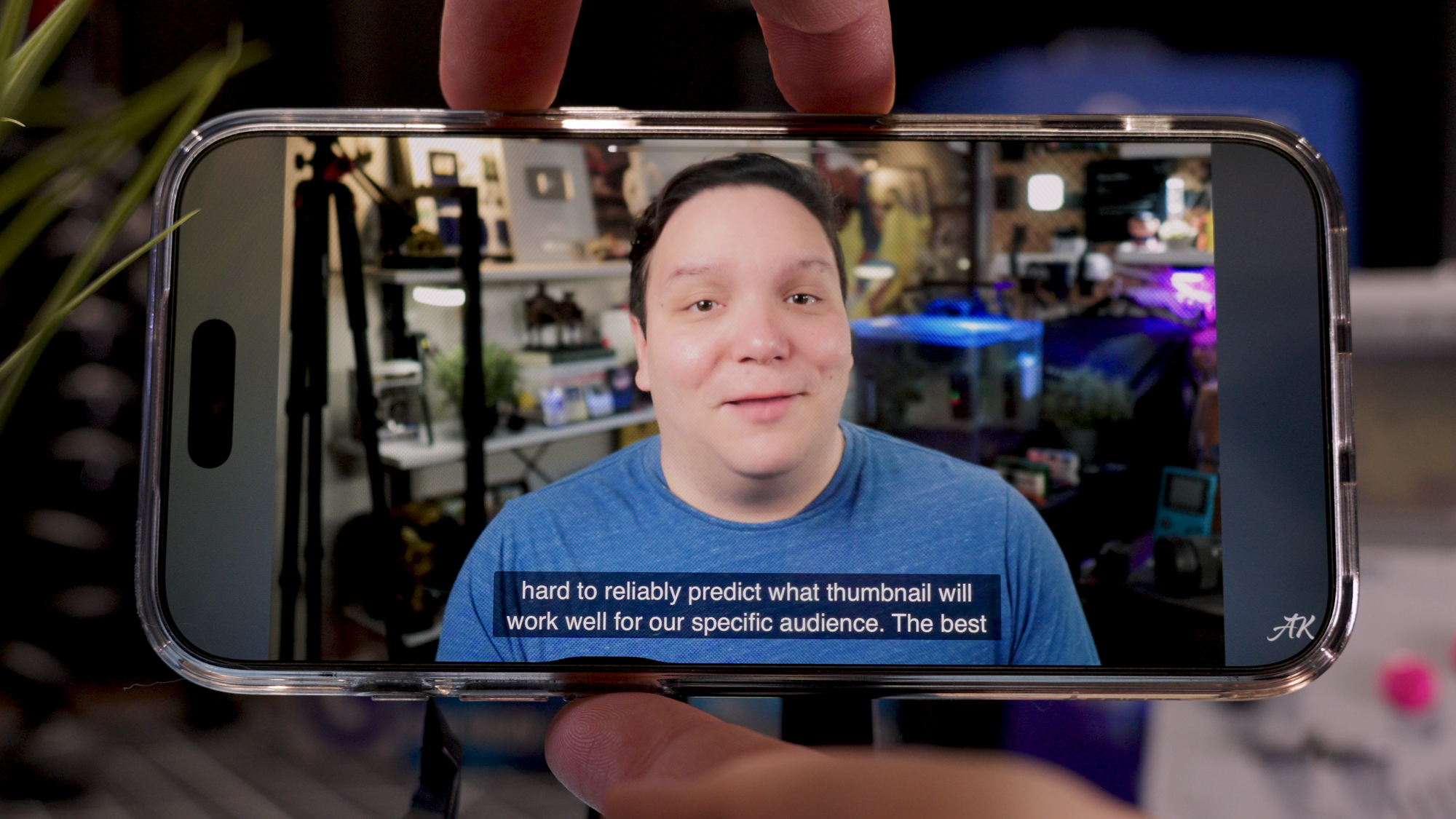
For creators who run live streams or produce long-form podcasts, transcripts become even more valuable because viewers can search within your transcript and jump directly to specific parts of your video. That keeps people watching longer, which directly feeds YouTube's watch time metric, one of the biggest factors in how the algorithm ranks and recommends content.
I walk through the full process of generating and uploading transcripts in the video, including how to save them as SRT and TXT files, paste them into YouTube's subtitle editor, and fine-tune the timing. I also have a dedicated video explaining how YouTube transcripts have essentially replaced tags and how you can use them to build better chapters, and I'll link that in the replay so you can go deeper.
Free Transcript Maker (affiliate link) This tool transcribes your videos, live streams, and podcasts in about three minutes, completely free. I tested it in an incognito window to prove it, and the output is ready to upload directly to YouTube.
What Makes a YouTube Description Actually Work for SEO?
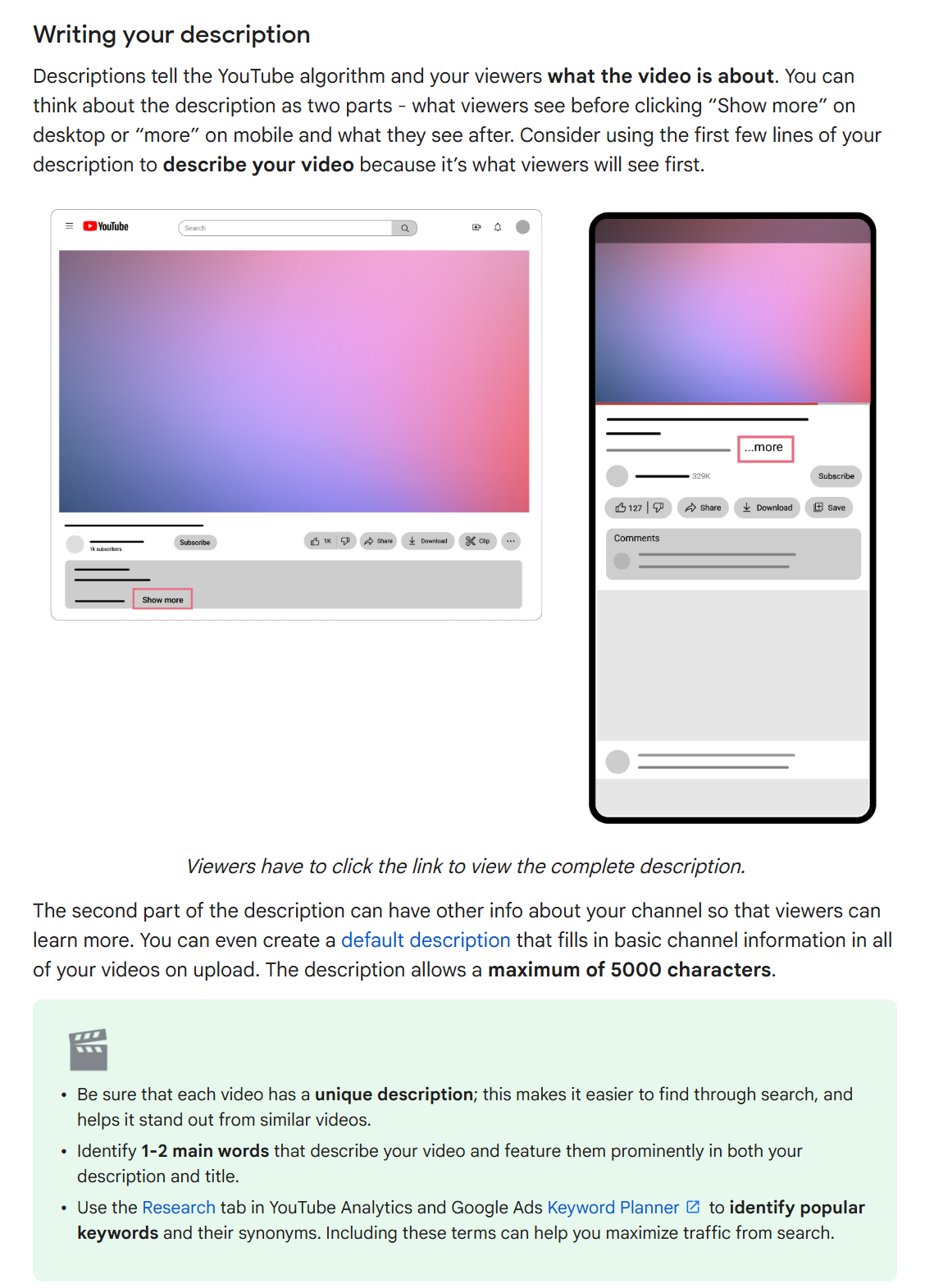
Your video description is one of the most underutilized pieces of metadata on YouTube, and it's also one of the most important. YouTube has stated that descriptions tell both the algorithm and viewers what the video is about, which means a well-written description does double duty, helping the platform categorize your content correctly while convincing real humans to stick around and watch.
Here's what a lot of creators get wrong: they bury the good stuff below the fold. Only the first 150 to 200 characters of your description are visible before a viewer has to click "Show more." That above the fold area is what users see, and the entire description YouTube uses to match your content against search queries, and it's what potential viewers scan to decide if your video is worth their time. Your primary keywords should appear naturally within those first couple of sentences, and the opening should restate the core promise of your video.
YouTube also recommends identifying one to two main keywords that describe your video and featuring them in both your description and your title. You can even use the free Trends tab in YouTube Analytics to find popular keywords your audience is already searching for, which gives you a data-driven starting point instead of guessing.
The free OpusClip description generator gives you three description options based on your title and a short summary of your video. I typed in the topic of my video and got three solid starting points that I could then customize. These aren't meant to be copy-and-paste finals, they're a first draft that gets you 80% of the way there so you're not staring at a blank text box.
Free YouTube Description Generator (affiliate link) Enter your title and a brief summary, and the tool generates three keyword-rich description options you can refine before publishing.
How Should You Use YouTube Hashtags Without Getting Penalized?
Hashtags are one of those YouTube features that seem simple on the surface but have some surprisingly strict rules underneath. YouTube's official policy allows up to 60 hashtags per video, but they've made it clear that if you use more than 60, they'll ignore every single one of them on that video. They've also warned that hashtags unrelated to your content can actually get your video removed, so this is an area where quality over quantity genuinely matters.
The placement matters too. Hashtags should go at the bottom of your YouTube description, and only the first three from your description will display above your video title. That means the order you list them in is significant, so lead with the most relevant, highest-impact hashtags and let the rest serve as additional context for the algorithm.
The trick I recommend is taking the description you already wrote and pasting it into the OpusClip hashtag generator. Since the tool analyzes your description text, the hashtags it produces are naturally relevant to your actual content rather than generic filler tags. It's a simple workflow: write your description first, generate hashtags from it, then add the best ones to the bottom of that same description.
Free YouTube Hashtag Generator (affiliate link) Paste your description and the tool generates relevant hashtags tailored to your video's content.
How Do These Three Tools Work Together for YouTube SEO?
The real power of these free OpusClip tools isn't any single one in isolation, it's the workflow they create together. Start by running your video through the transcript maker to generate an accurate transcript, which you upload to YouTube for captions and accessibility. Then use your title and a brief video summary to generate description options with the description generator. Finally, take that polished description and feed it into the hashtag generator to produce relevant, content-specific hashtags.
This entire process takes maybe ten minutes and covers three of the most important metadata elements YouTube uses to understand, categorize, and recommend your content. Compare that to the hour or more it might take to write everything from scratch, and the time savings add up fast, especially if you're publishing consistently.
If you want to go even deeper with OpusClip beyond these free tools, I have an hour-long step-by-step tutorial walking through the full platform. You can check that out this blog: https://blog.kdcc.social/opus-clip-full-tutorial-grow-youtube-with-ai/
Try OpusClip Free (affiliate link)
Watch the Full Walkthrough
I demonstrated every one of these tools live in an incognito browser window so you can see exactly how they work and verify they're genuinely free. The video covers the complete step-by-step process for each tool, including tips for uploading transcripts, editing descriptions, and ordering your hashtags for maximum impact.
I'd love to know which of these three free tools are you most excited to try first? Drop a comment on the video and let me know.
Andrew Kan is the co-founder of the Kan Do Creators Community (KDCC) alongside Ike, with 13+ years of YouTube experience including growing the TubeBuddy channel from around 6,000 to over 500,000 subscribers. Learn more about Andrew's background →
Disclosure: This post contains affiliate links to OpusClip tools. If you use these links, I may earn a commission at no additional cost to you. All opinions and recommendations are my own. I only recommend tools I personally use and believe will help your channel grow.
If I Kan, You Kan Too.