5 Free YouTube Tools Every Creator Should Be Using
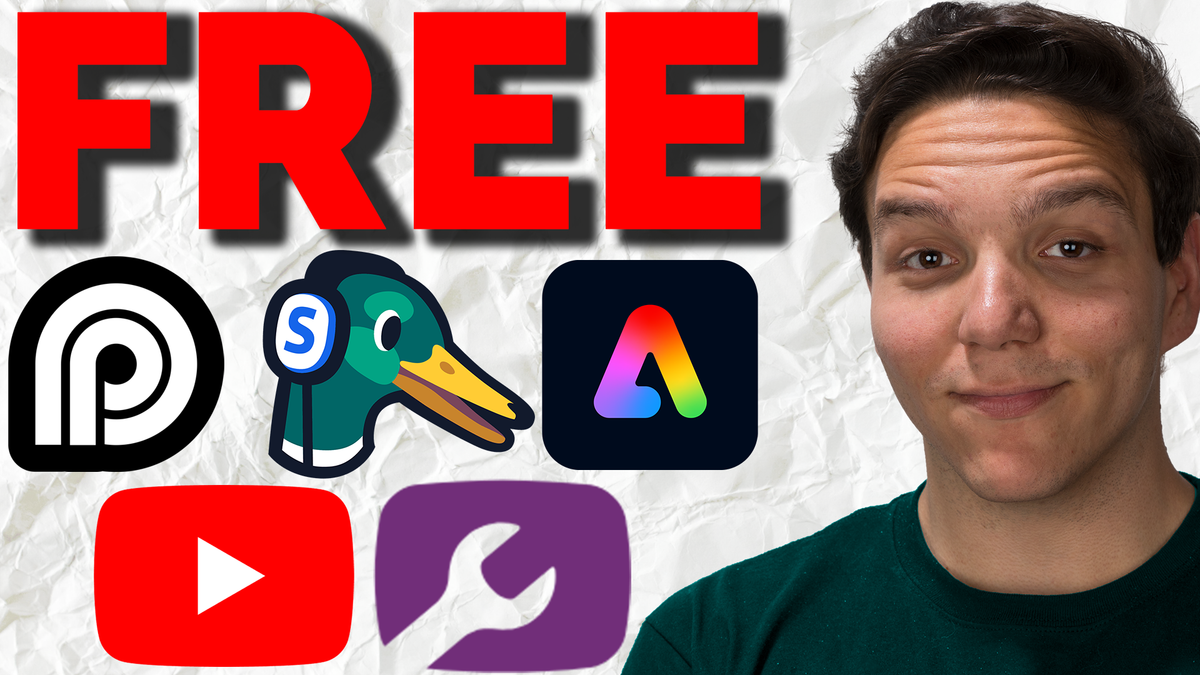
Five free YouTube tools that handle everything from keyword research to livestreaming to content repurposing. All of them have forever-free versions, and they work even better together.

After more than 13 years on YouTube, I can tell you this: the tools available to creators today didn't exist when I started. The barrier to entry has never been lower, and the free versions of these tools are genuinely useful, not stripped-down demos that force you to upgrade.
These are five free YouTube tools I use regularly. They each have forever-free versions and optional paid tiers if you want to go deeper. I've worked with some of these tools in the past, and I have affiliate links to free trials for their paid versions linked below. Full transparency, always.
If I Kan use these tools, you Kan too.
1. Opus Clip: Repurpose Your Content Without the Headache
If you're creating long-form videos, livestreams, or podcasts and NOT repurposing that content into shorts, you're leaving views on the table.
Opus Clip uses AI to take your existing content and turn it into short-form clips. You can paste a YouTube link, upload a file, or feed it a livestream, and it handles the cutting, captioning, and recommendations for you.
The free version works. You can make clips, add captions, and start getting consistent with short-form content without spending hours in an editor. It's one of the biggest reasons I've been able to stay consistent on YouTube.
Here's the key though: repurposed clips still need good SEO to perform. The clip gets people's attention, but your titles, descriptions, and keywords are what help YouTube surface it. Which brings us to the next tool.
Try Opus Clip Free (affiliate link)
2. YouTube's Free Trends Tab: Keyword Research Built Right In
YouTube quietly released one of the most valuable free tools for creators, and a lot of people still don't know it exists.
Go to YouTube Studio on desktop or the mobile app, open your Analytics, and tap the Trends tab at the top. That's it. You now have access to what your audience is actually searching for.
Here's why this matters: instead of guessing what to make next, this tool shows you the demand that already exists. You can see what topics your viewers care about, check whether a video idea fits their interest, and even spot content gaps where people are searching but not finding enough answers.
YouTube has also been adding features that help you build video outlines based on search terms right from this tab.
This works for videos, shorts, and livestreams. It's one of the best starting points for any content you're planning.
I go much deeper on how to use this tool and YouTube SEO strategy in a video, and I'd recommend watching that if you want the full walkthrough on making this work for your channel.
3. StreamYard: Go Live Without the Tech Headaches
Livestreaming is one of the fastest ways to build community and create content, but the tech setup scares a lot of creators away.
StreamYard solves that. It's a browser-based livestreaming and recording studio, which means there's nothing to download. It works on your desktop, phone, or iPad. You can go live to YouTube, LinkedIn, Facebook, Instagram, and more.
The free version does include a watermark, but the free trial of their paid version doesn't. Either way, you can bring on guests, add graphics, and run a clean livestream without needing a production team.
Here's where it gets good: you can take a topic from the YouTube Inspiration Tab, schedule a livestream in StreamYard, go live, and then send that stream straight to Opus Clip to create shorts afterward. Three tools, one workflow, zero cost.
When you schedule your stream, just upload a thumbnail and you're ready. And speaking of thumbnails...
Try StreamYard Free (affiliate link)
4. Adobe Express: Thumbnails, Graphics, and More for Free
Adobe Express is Adobe's free creative tool, and it does a lot more than most people realize.
You can make YouTube thumbnails, edit videos, use generative AI features, remove backgrounds, and even animate characters with your audio. It's available on desktop via browser and on their mobile app, and because it runs on Adobe's cloud, you can start a project on your computer and finish it on your phone.
For creators specifically, this is a strong starting point for thumbnail creation. You can use their templates, ask AI to generate templates, or design from scratch. I've used it for thumbnails, banners, avatars, and more.
Here's a bonus most people miss: Adobe Express can open Photoshop and Illustrator files. So if you're learning design or working with assets from a designer, you're not locked out.
Try Adobe Express Free (affiliate link)
5. TubeSpanner: A YouTube Toolkit That Lives in Your Browser
TubeSpanner is a browser extension, so once you install it, it shows up right on YouTube. Authenticate your account and it goes to work.
What I like about TubeSpanner is that it covers a lot of the backend work creators spend too much time on. Keyword-based content planning, video outlines, title generation, milestone celebrations, and smart comment replies so you can engage with your audience faster.
They also integrate with tools like StreamYard, which makes the workflow even smoother. A lot of these features are free, and you can explore everything just by clicking their icon and scrolling through the menus.
TubeSpanner's value is in saving you time on the stuff that doesn't need to take long, so you can spend more time actually creating.
Try TubeSpanner Free (affiliate link)
How These Tools Work Together
Here's where this gets powerful. These five tools aren't just useful on their own; they connect into a real workflow:
Research your next topic using the YouTube Trends Tab. Plan and outline your content with TubeSpanner. Create your thumbnail in Adobe Express. Go live or record with StreamYard. Repurpose the content into shorts with Opus Clip.
That's a full content cycle, and every step has a free tool behind it.
If you want to go deeper on YouTube SEO and making your content actually get found, check out my beginner's guide to YouTube SEO.
I'm Andrew Kan, and if I Kan do it, you Kan too.
Disclosure: Some links in this post are affiliate links to free trials of paid versions. I've worked with some of these tools in the past. I only recommend tools I actually use. You'll never pay more by using these links, and they help support KDCC and the free content we create for the YouTube creator community.